> ## Documentation Index
> Fetch the complete documentation index at: https://docs.droxy.ai/llms.txt
> Use this file to discover all available pages before exploring further.
# Subscription
> Learn how to manage your subscription and billing.
## Update Your Payment Method
You can easily update your payment method in Droxy through our secure and straightforward process using Stripe as our payment processor.
## Step-by-Step Guide
### 1. Access Billing Settings
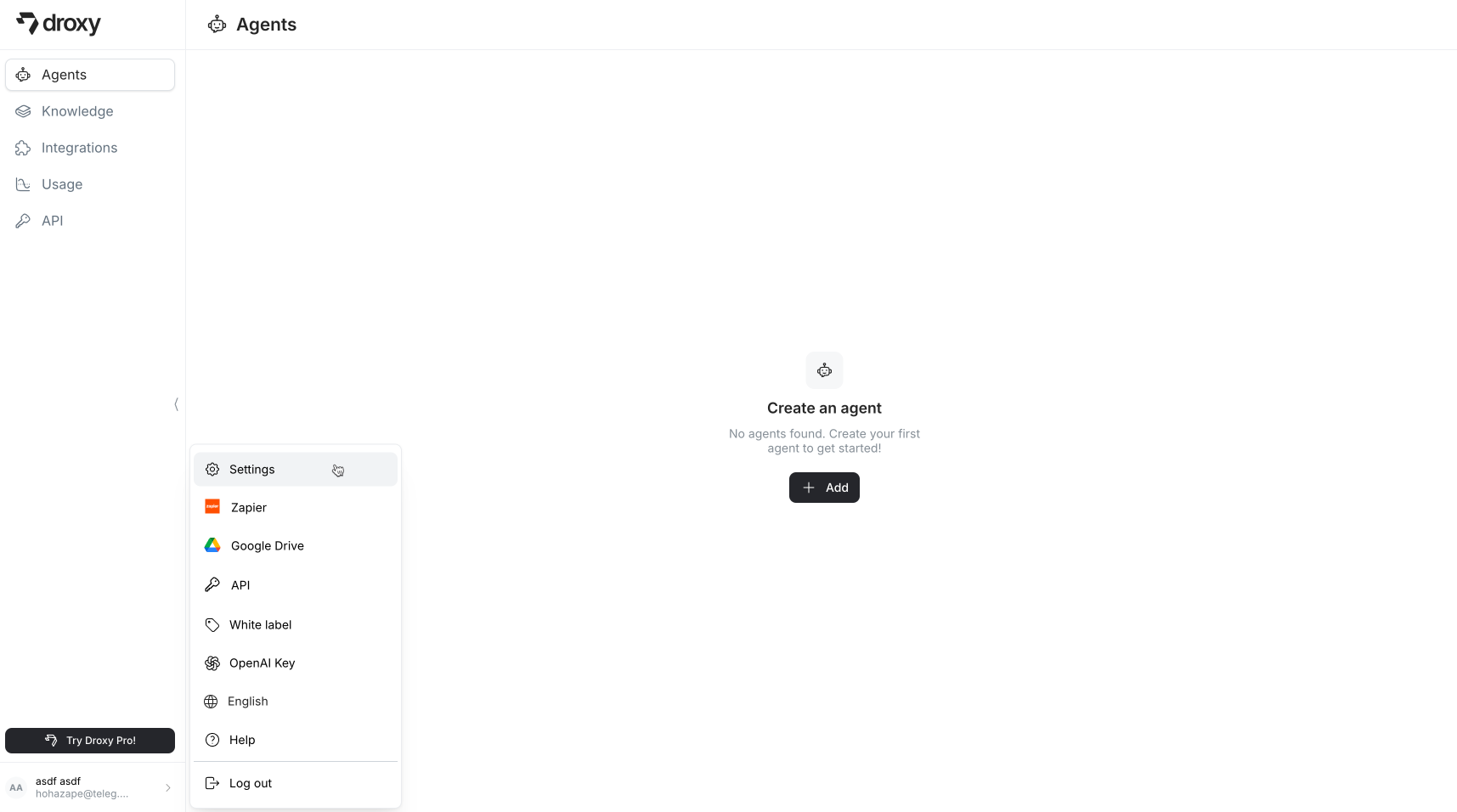
Navigate to the **Settings** section from the left sidebar and click on the **Billing** tab to view your subscription details.
 ### 2. Update Subscription
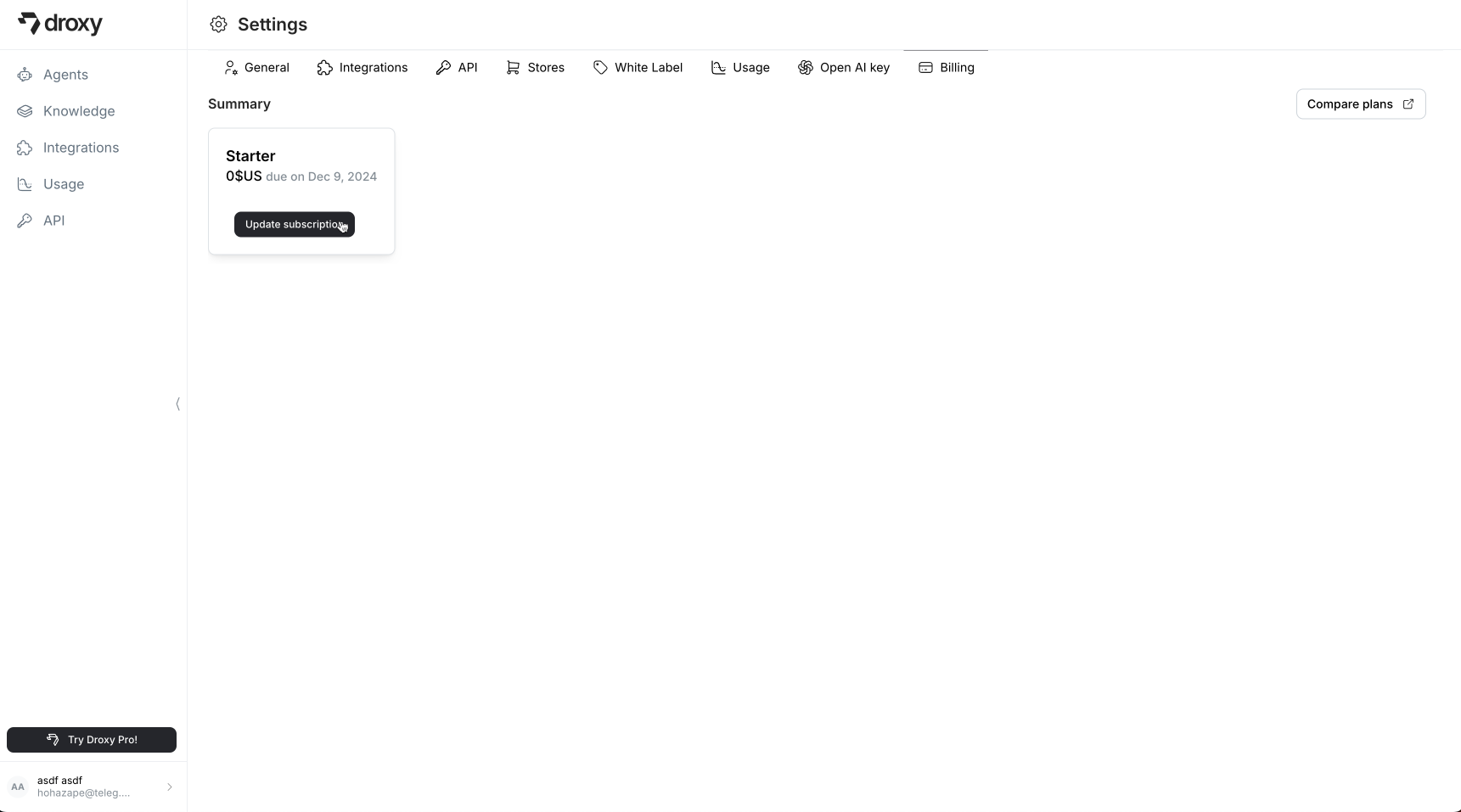
From the billing page, click the **Update subscription** button to proceed with payment method changes.
### 2. Update Subscription
From the billing page, click the **Update subscription** button to proceed with payment method changes.
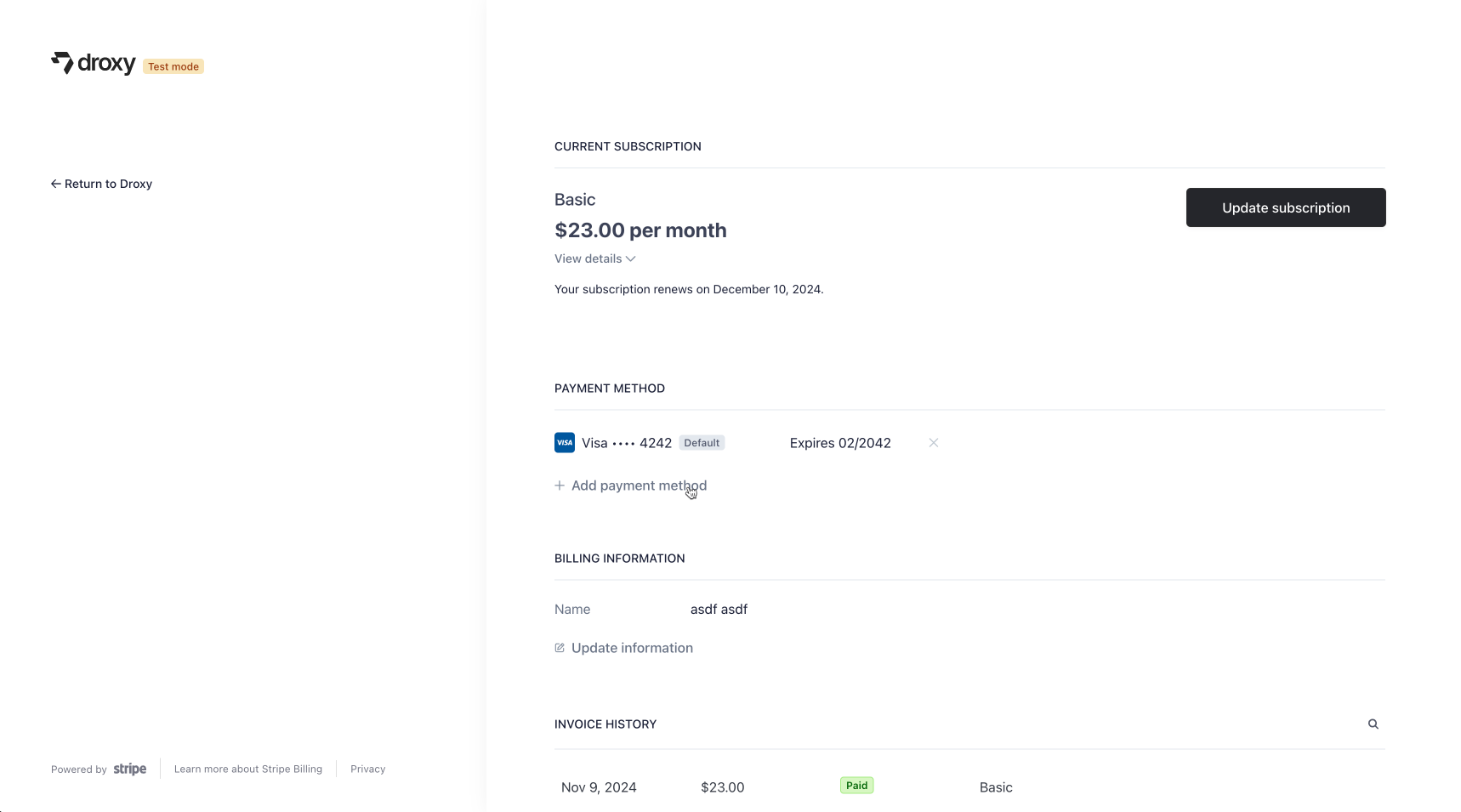
 ### 3. Add New Payment Method
 ### 4. Enter card information and set as default
Enter your credit card information and check the "Use as default payment method" box if you want this card to be your primary payment method for future billing cycles.
### 4. Enter card information and set as default
Enter your credit card information and check the "Use as default payment method" box if you want this card to be your primary payment method for future billing cycles.
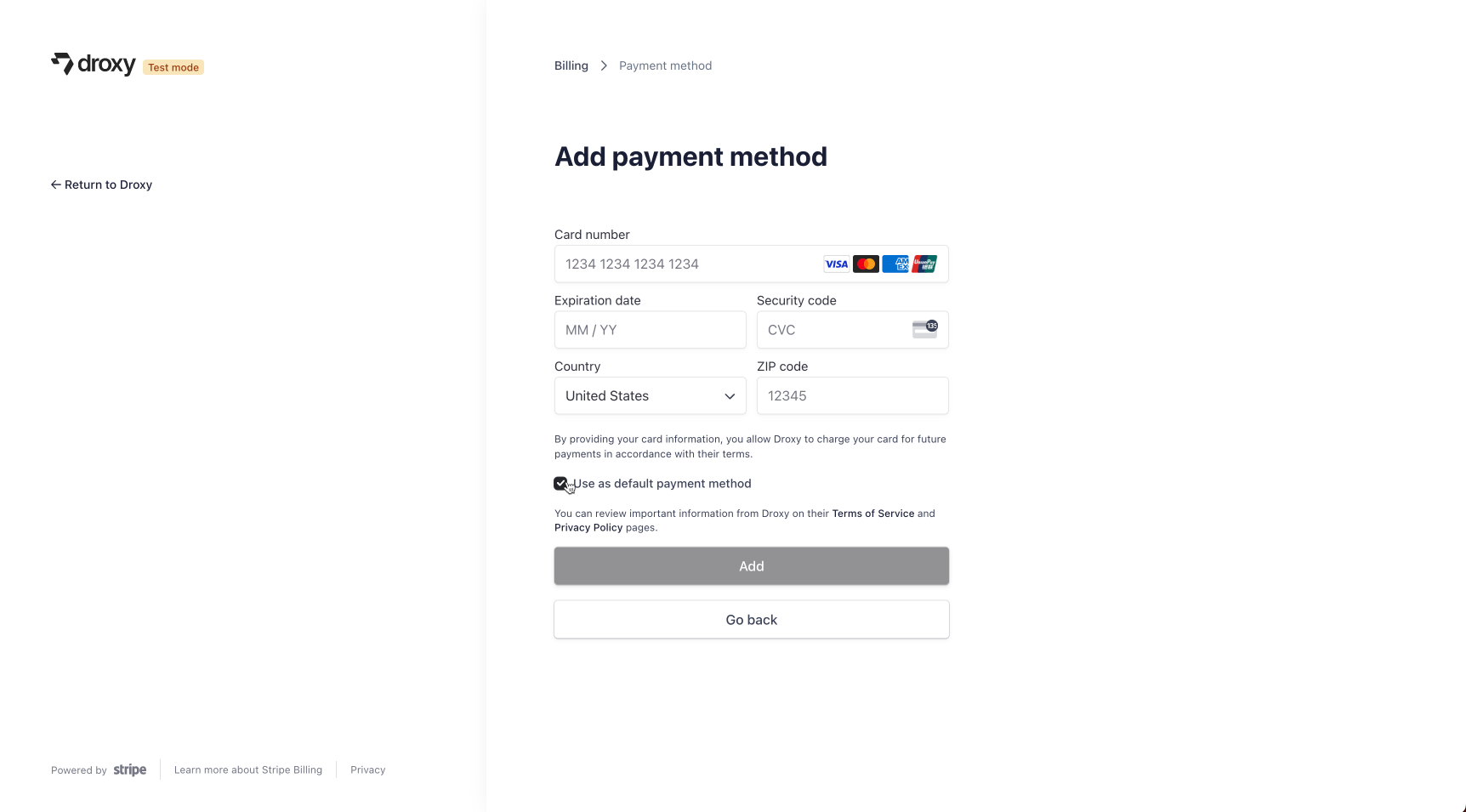 Click **Add** to save your new payment method.
## Important Notes
* All payments are securely processed through Stripe
* You can maintain multiple payment methods
* Your subscription will automatically use your default payment method
* Changes take effect immediately
Click **Add** to save your new payment method.
## Important Notes
* All payments are securely processed through Stripe
* You can maintain multiple payment methods
* Your subscription will automatically use your default payment method
* Changes take effect immediately