> ## Documentation Index
> Fetch the complete documentation index at: https://docs.droxy.ai/llms.txt
> Use this file to discover all available pages before exploring further.
# Agent's Dashboard
> Learn how to share your Droxy agent's dashboard
## Why Share Your Agent's Dashboard?
Droxy allows you to share an individual agent's dashboard with others. This dashboard provides access to the agent's configuration details, conversations, leads, evaluations, and more.
You can share an agent's dashboard with your team, clients, or the public. The sharing feature lets you distribute access to a specific agent's dashboard through a simple shareable link. Once shared, users can view the agent's analytics, leads, evaluations, and other dashboard features.
You can also revoke or modify dashboard access at any time through the sharing settings.
## How to Share Your Agent's Dashboard?
### 1. Open the Sharing Settings
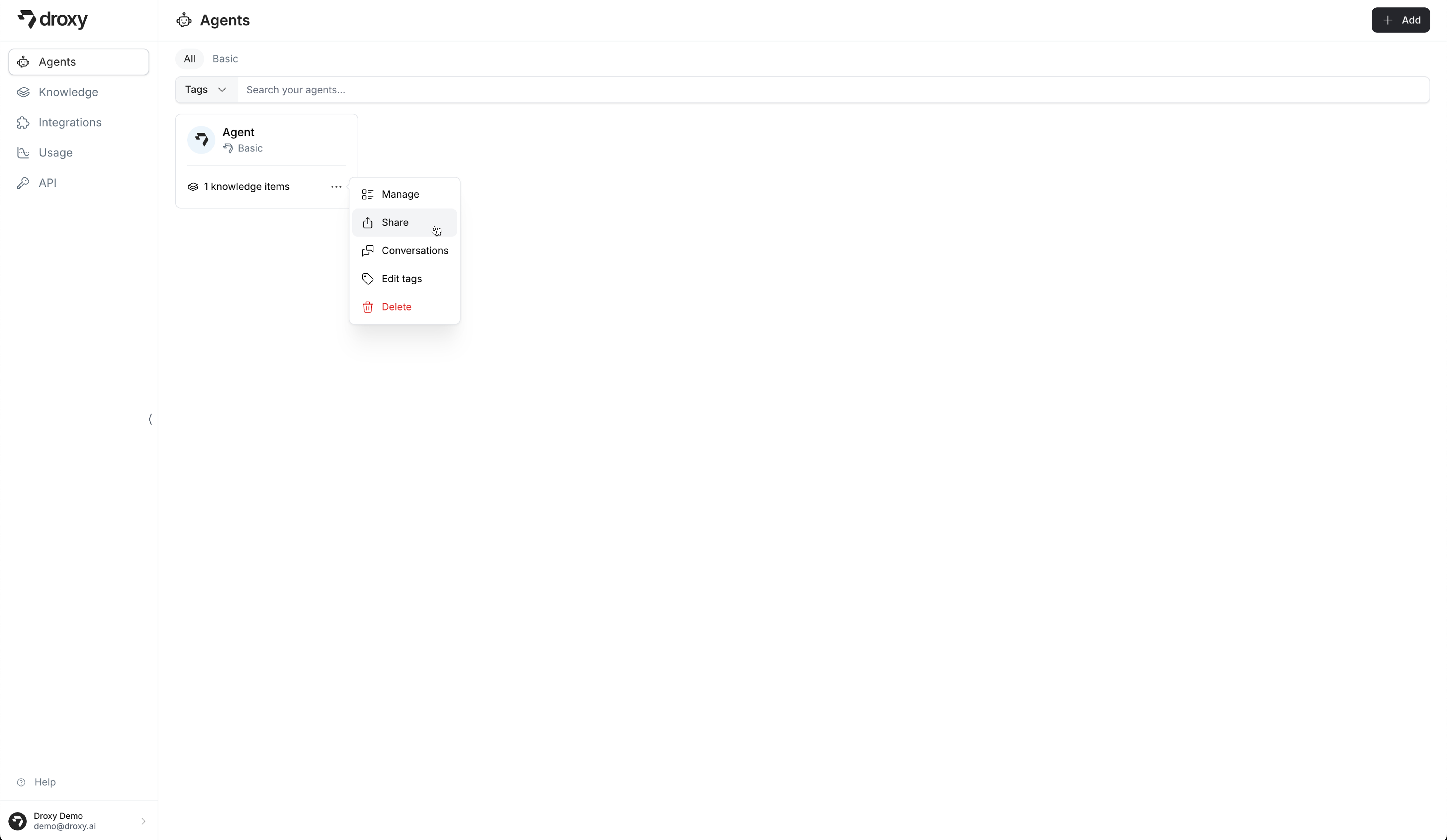
Open the sharing settings by clicking on the **Share** button on the agent's dropdown menu.
 ### 2. Select the Sharing Configuration
Select the sharing configuration you want to use.
#### 2.1 Select the Accessibility
Select the accessibility of the agent.
### 2. Select the Sharing Configuration
Select the sharing configuration you want to use.
#### 2.1 Select the Accessibility
Select the accessibility of the agent.
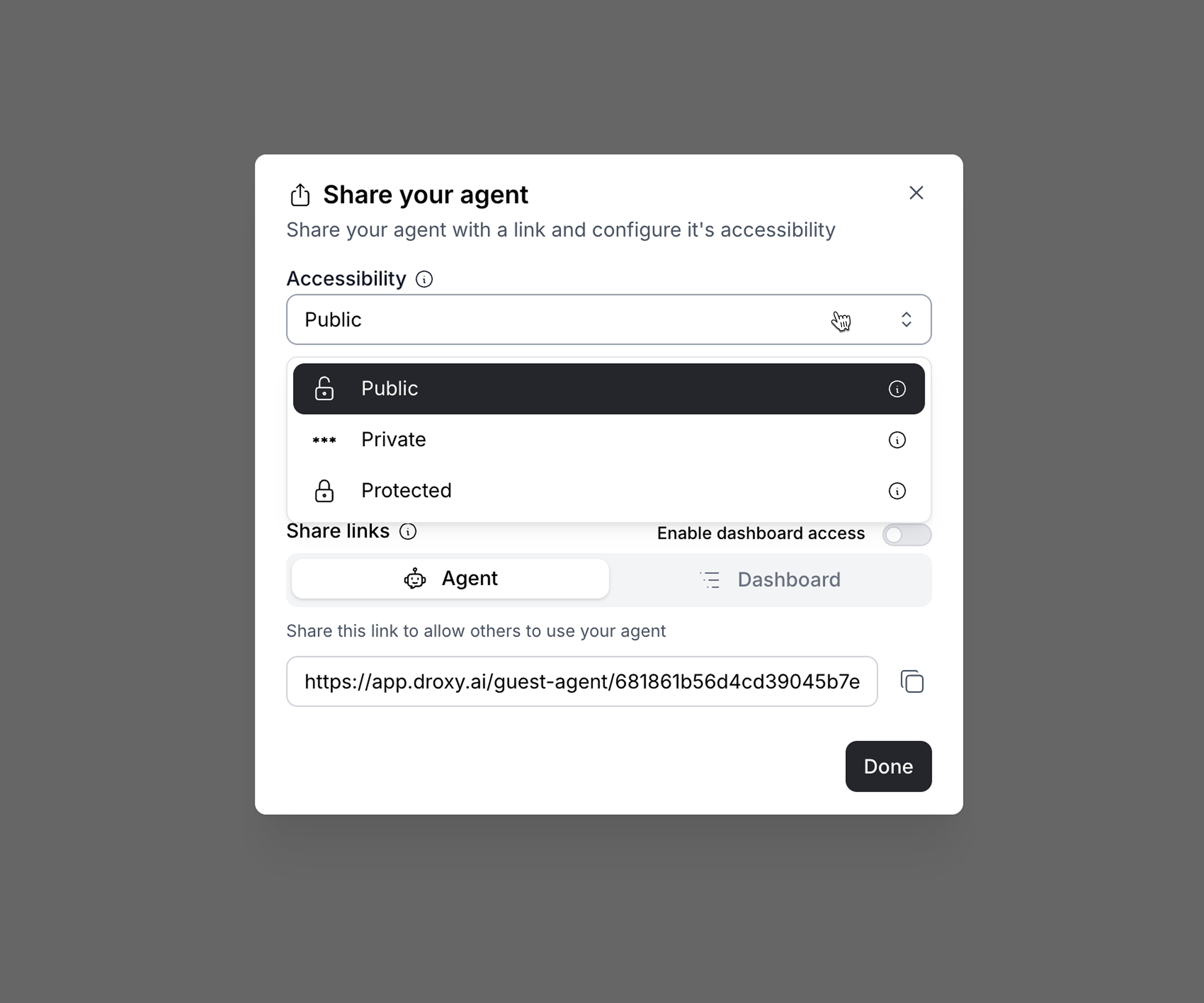 * **Public**: Make the agent accessible to everyone.
* **Private**: Make the agent accessible to everyone but protected with a password.
* **Protected**: Make the agent accessible only to you.
#### 2.2 Select Your White-Label Domain
If you want your agent to have a white-labeled domain when sharing the agent with others (e.g., `https://agent.example.com`), you can set it up here.
* **Public**: Make the agent accessible to everyone.
* **Private**: Make the agent accessible to everyone but protected with a password.
* **Protected**: Make the agent accessible only to you.
#### 2.2 Select Your White-Label Domain
If you want your agent to have a white-labeled domain when sharing the agent with others (e.g., `https://agent.example.com`), you can set it up here.
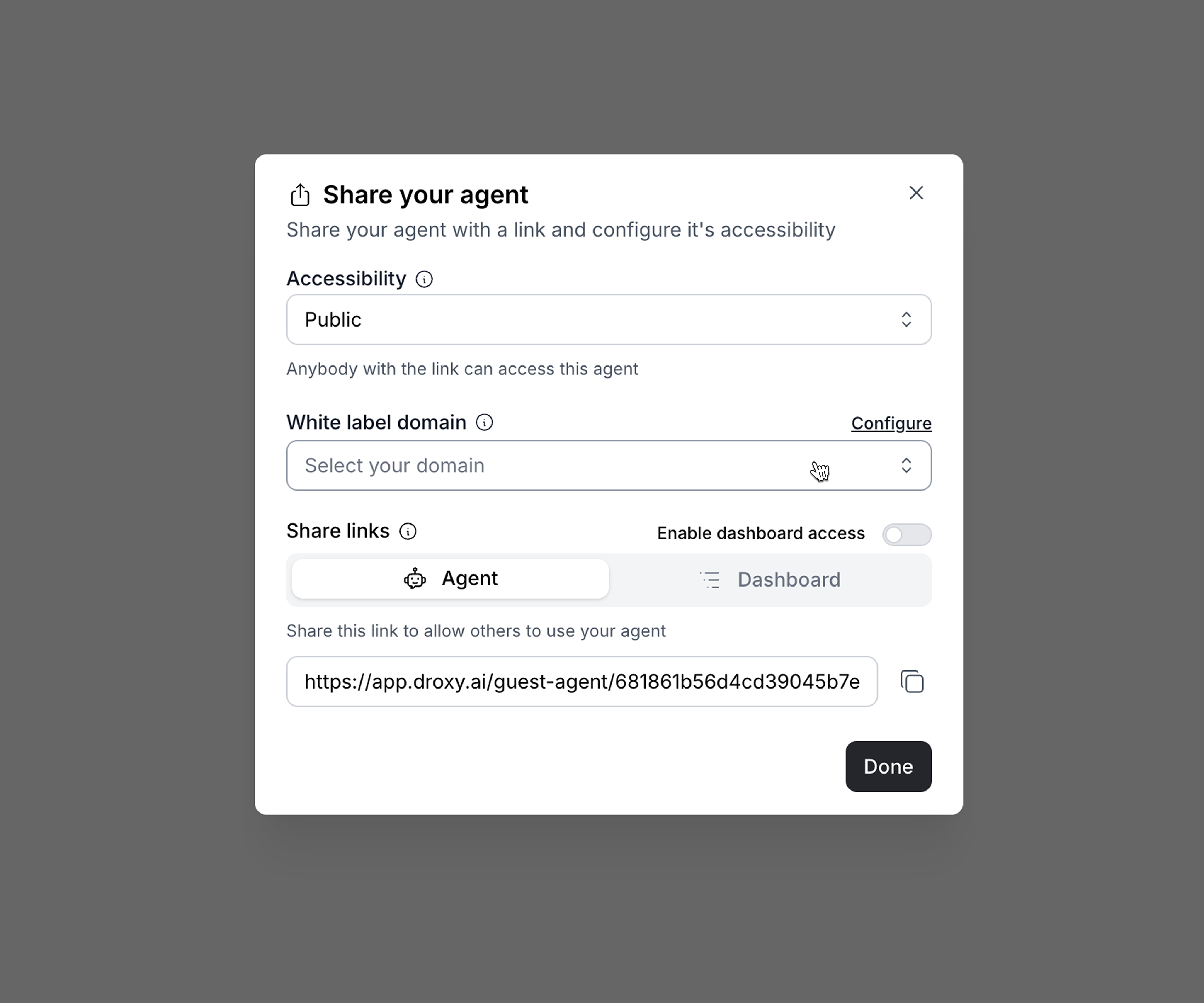 Refer to the [White Label](/documentation/enterprise/whitelabel) documentation for more information on how to set up your white-labeled domain.
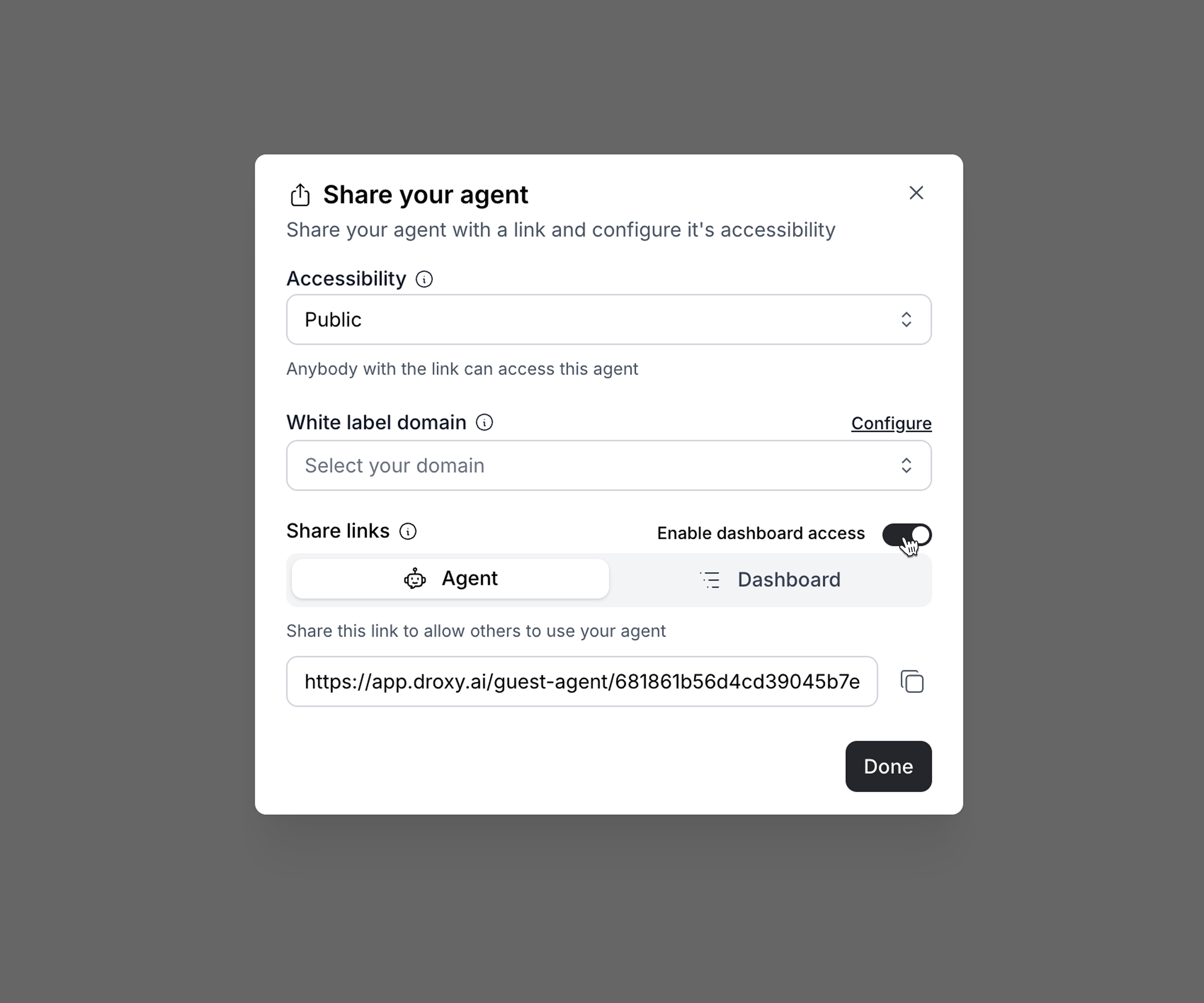
#### 2.3 Enable the Dashboard Access
Enable the dashboard access by clicking on the switch.
Refer to the [White Label](/documentation/enterprise/whitelabel) documentation for more information on how to set up your white-labeled domain.
#### 2.3 Enable the Dashboard Access
Enable the dashboard access by clicking on the switch.
 #### 2.4 Select the Dashboard Link
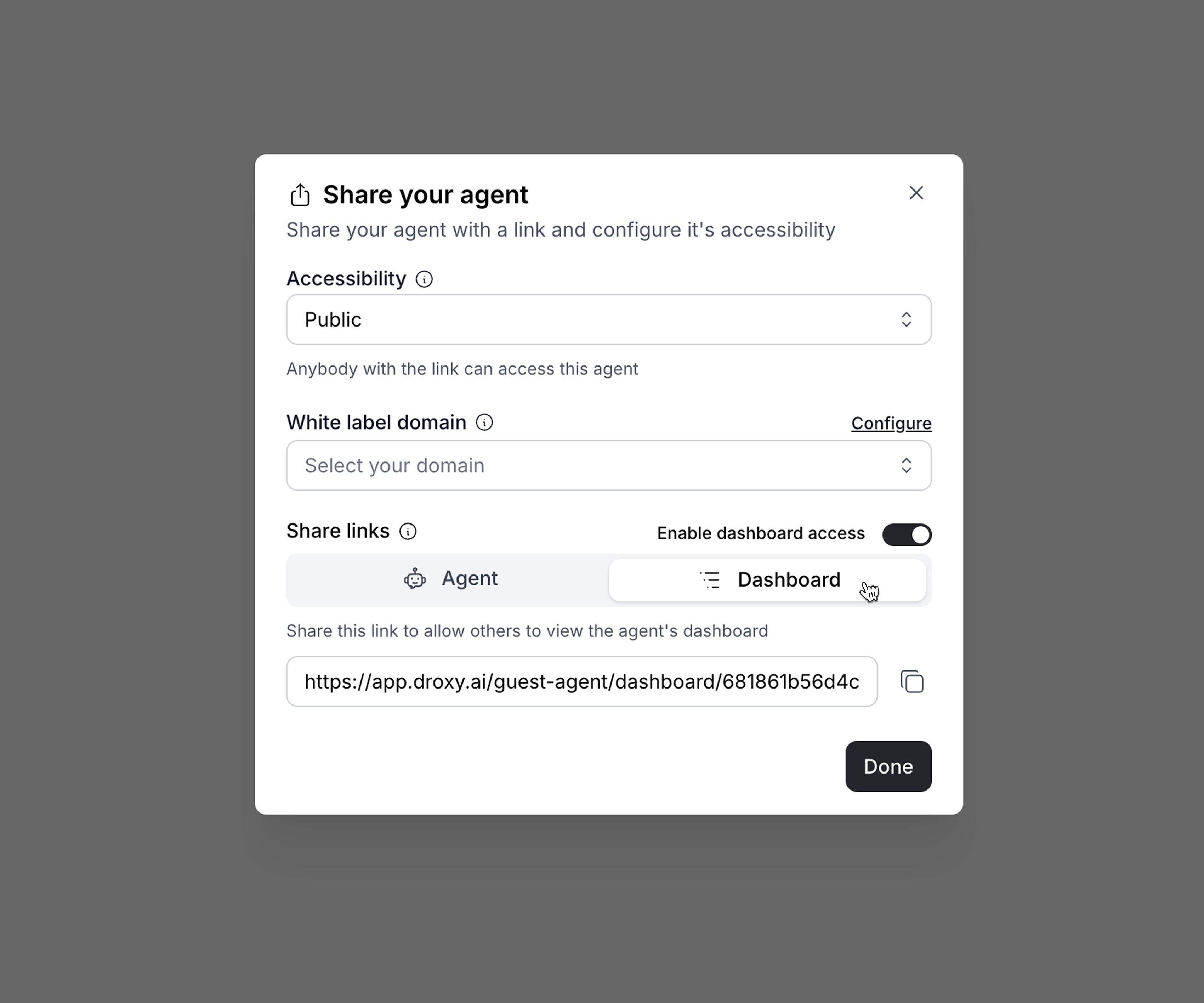
Select the dashboard link by clicking on the **Dashboard** button.
#### 2.4 Select the Dashboard Link
Select the dashboard link by clicking on the **Dashboard** button.
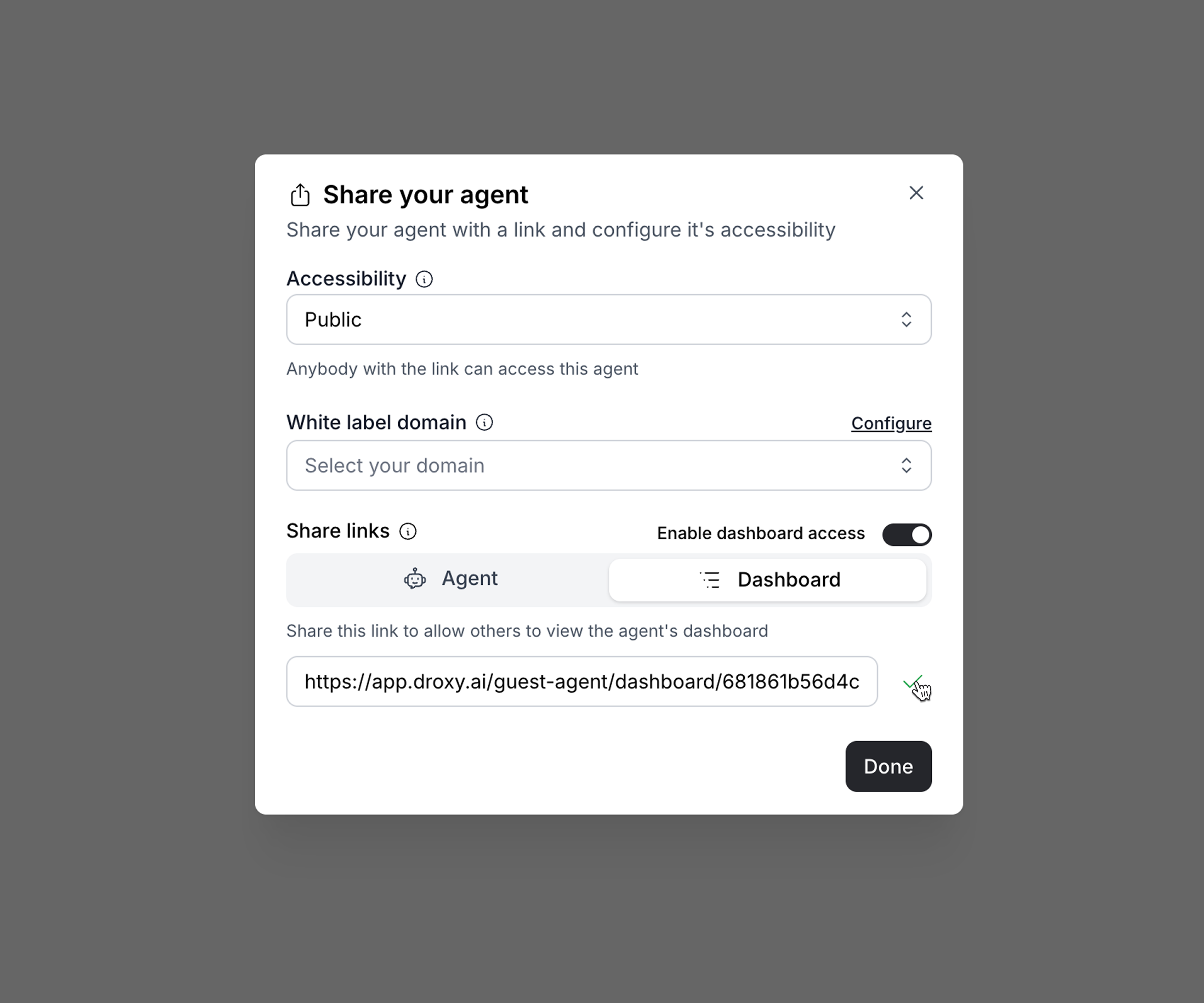
 ### 3. Copy the Dashboard Link
Copy the dashboard link to share the agent's dashboard with others.
### 3. Copy the Dashboard Link
Copy the dashboard link to share the agent's dashboard with others.