> ## Documentation Index
> Fetch the complete documentation index at: https://docs.droxy.ai/llms.txt
> Use this file to discover all available pages before exploring further.
# Phone Numbers / Twilio
> Learn how to import phone numbers that you can connect to your agents
 ## Overview
To enable customers to reach your [Phone Agent](/documentation/agents/phone), you'll need to connect it to a phone number. This number can then be shared on your website, Google Maps listing, business cards, or any other customer touchpoint.
There are two ways to get a phone number in Droxy:
1. Get a free **US/Canada** number through Droxy (paid plans only)
2. Import your existing **Twilio** number (any country)
## Adding a Phone Number
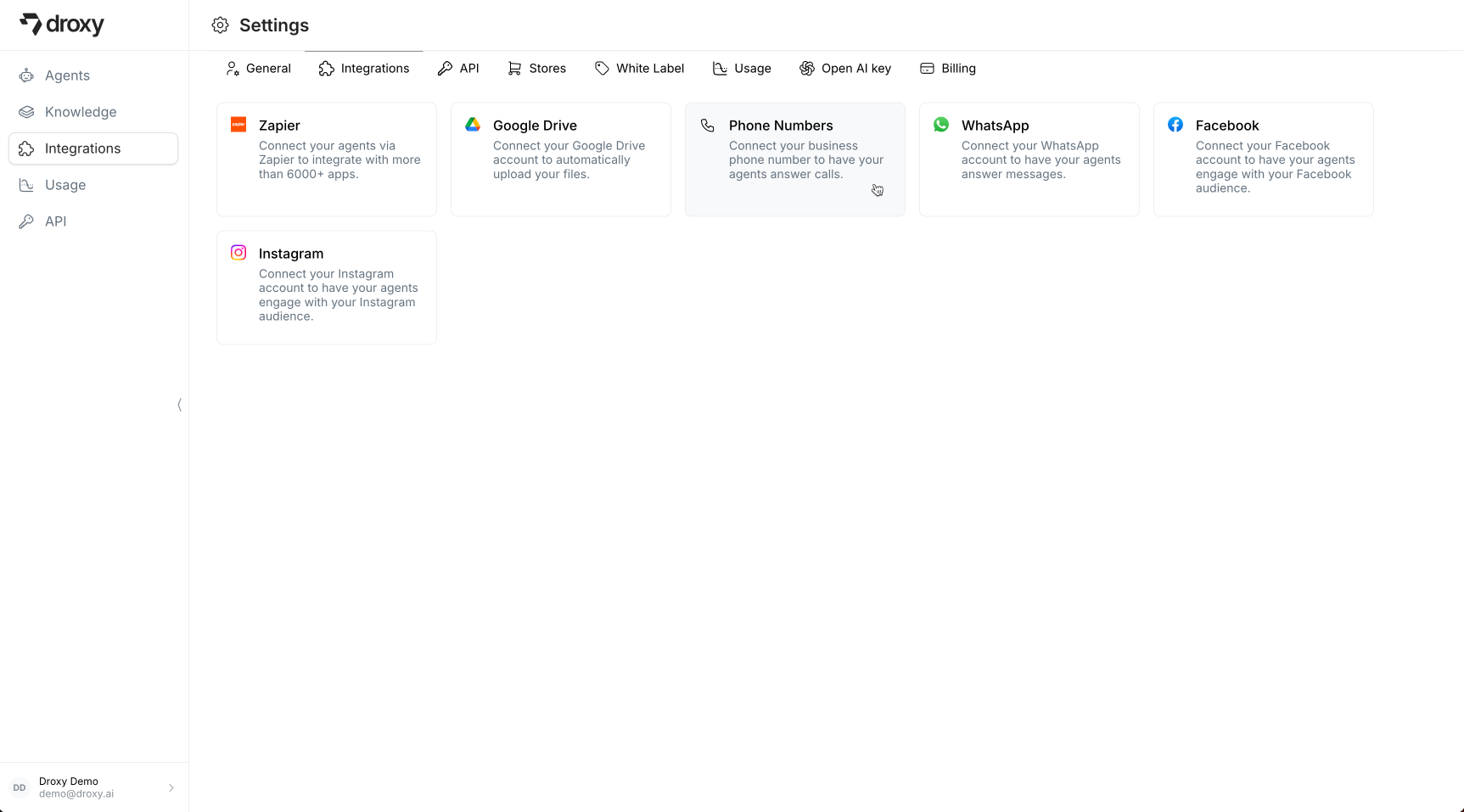
1. Navigate to **Settings** > **Integrations** in your Droxy dashboard
2. You should see the **Phone Numbers** integration in the list. Click on it.
## Overview
To enable customers to reach your [Phone Agent](/documentation/agents/phone), you'll need to connect it to a phone number. This number can then be shared on your website, Google Maps listing, business cards, or any other customer touchpoint.
There are two ways to get a phone number in Droxy:
1. Get a free **US/Canada** number through Droxy (paid plans only)
2. Import your existing **Twilio** number (any country)
## Adding a Phone Number
1. Navigate to **Settings** > **Integrations** in your Droxy dashboard
2. You should see the **Phone Numbers** integration in the list. Click on it.
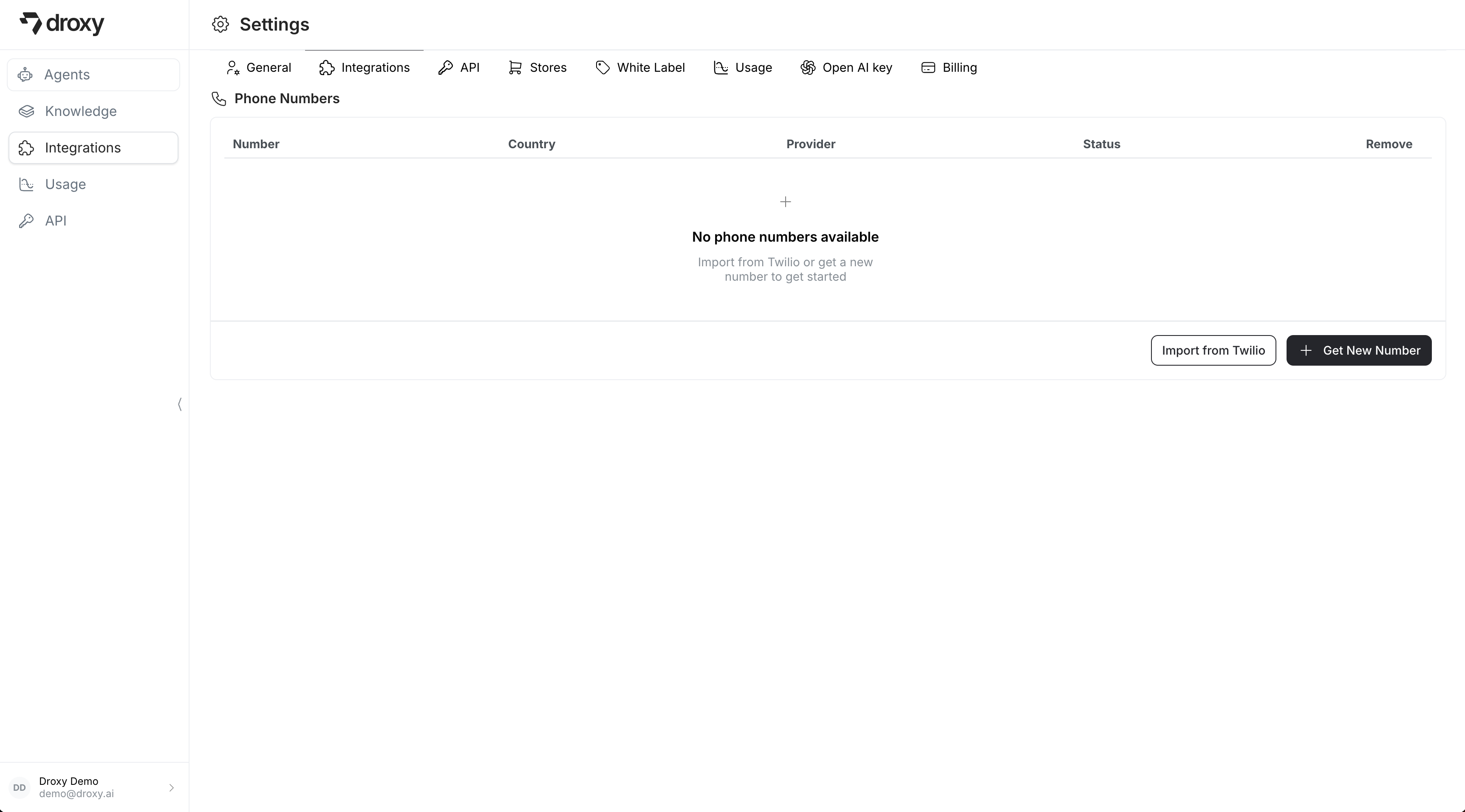
 3. You should see the **Phone Numbers** page where you can manage existing numbers and add new ones.
 ### Option 1: Get a Number Through Droxy
If you're on a paid plan, you can get a free phone number for use in the US or Canada:
1. Click the **Get New Number** button
### Option 1: Get a Number Through Droxy
If you're on a paid plan, you can get a free phone number for use in the US or Canada:
1. Click the **Get New Number** button
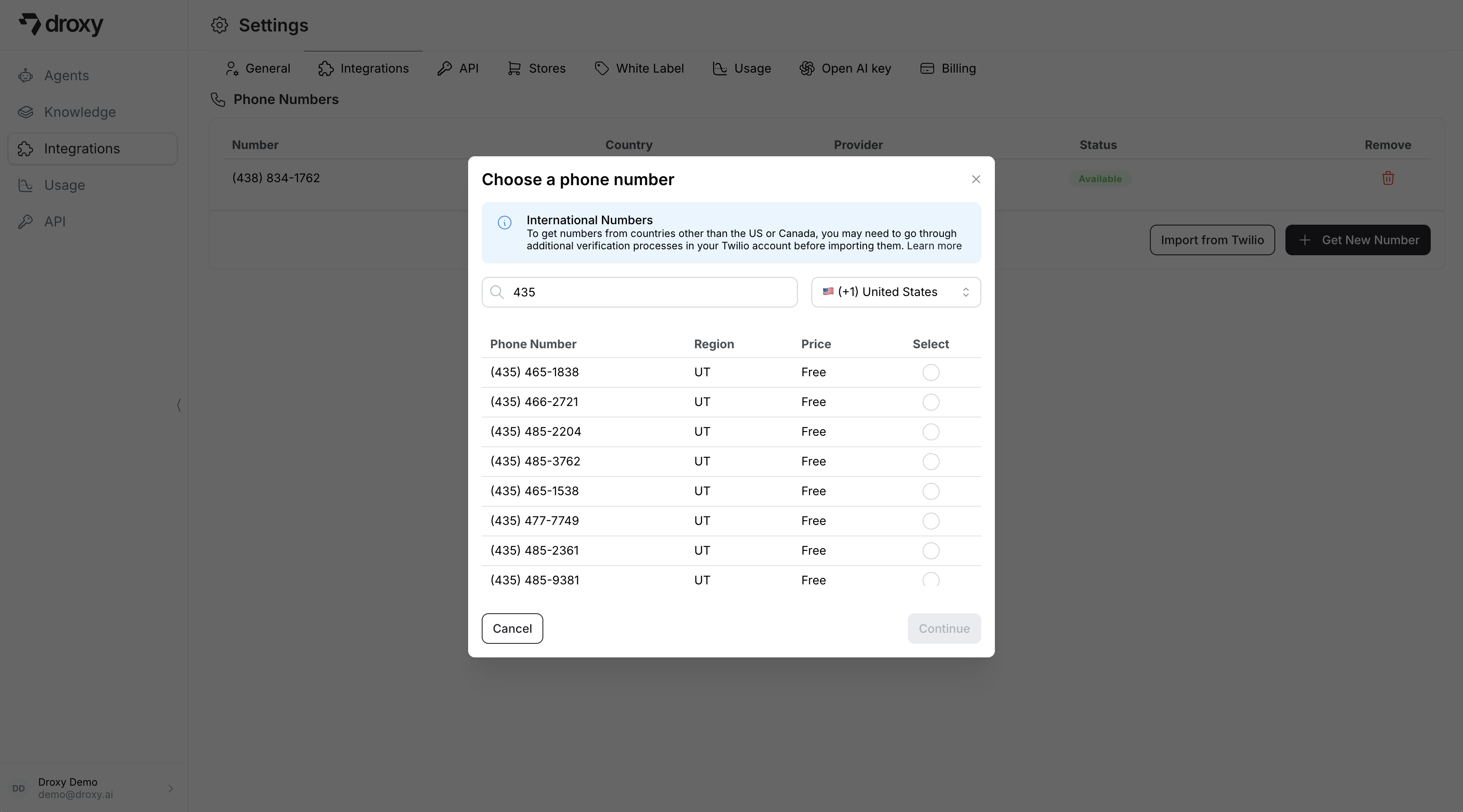 2. Select your desired country (US/Canada)
3. Browse available numbers by region/area code
4. Select your preferred number from the list
5. Click **Continue** to add the number to your account
### Option 2: Import from Twilio
For numbers **outside the US/Canada**, or if you prefer to use **your own Twilio account**, you can import an existing Twilio number:
Numbers outside the US/Canada require additional verification processes in Twilio due to telephony provider requirements. We recommend importing these through your Twilio account for a smoother experience.
1. First, get a number from Twilio by following [this official guide](https://help.twilio.com/articles/223135247-How-to-Search-for-and-Buy-a-Twilio-Phone-Number-from-Console) for your desired country and region
2. **Set up an Elastic SIP Trunk** in your Twilio account to connect calls to Droxy's voice agent:
The Elastic SIP Trunk setup is required to route incoming calls from your Twilio number to Droxy's voice agent infrastructure. For more detailed information about Elastic SIP Trunks, you can read [Twilio's official documentation](https://www.twilio.com/docs/sip-trunking). Once you've completed these steps and imported your number, you can attach it to your Phone Agent and start receiving calls!
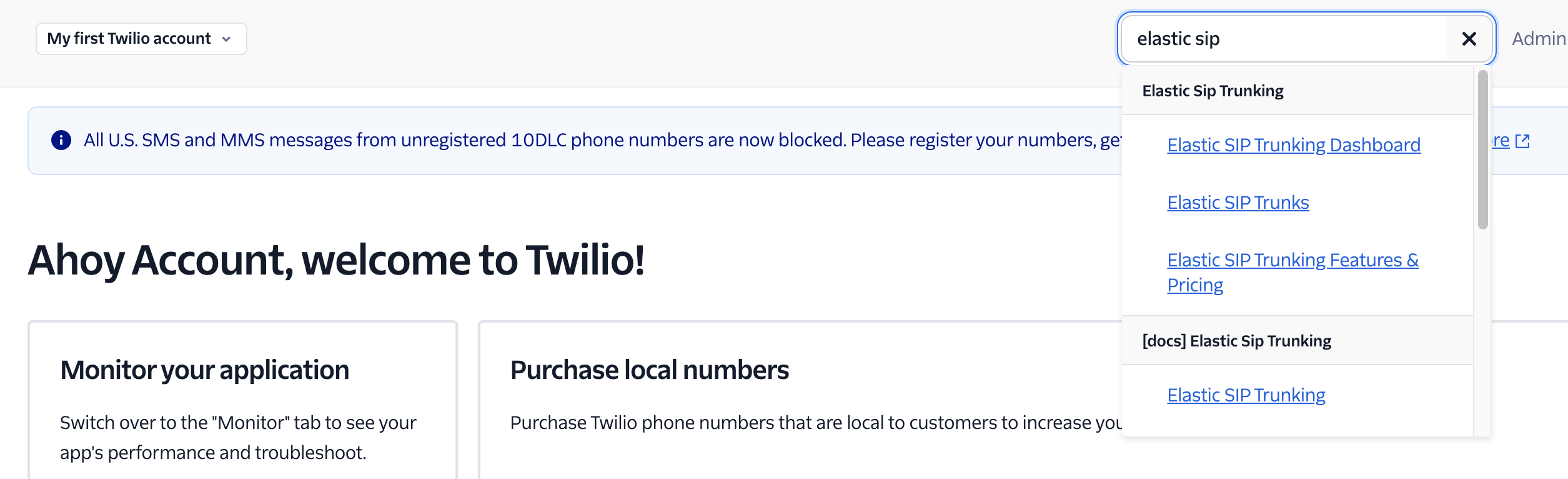
2.1 In your [Twilio Console](https://console.twilio.com/), search for "Elastic SIP Trunks" and click on **Elastic SIP Trunks**
2. Select your desired country (US/Canada)
3. Browse available numbers by region/area code
4. Select your preferred number from the list
5. Click **Continue** to add the number to your account
### Option 2: Import from Twilio
For numbers **outside the US/Canada**, or if you prefer to use **your own Twilio account**, you can import an existing Twilio number:
Numbers outside the US/Canada require additional verification processes in Twilio due to telephony provider requirements. We recommend importing these through your Twilio account for a smoother experience.
1. First, get a number from Twilio by following [this official guide](https://help.twilio.com/articles/223135247-How-to-Search-for-and-Buy-a-Twilio-Phone-Number-from-Console) for your desired country and region
2. **Set up an Elastic SIP Trunk** in your Twilio account to connect calls to Droxy's voice agent:
The Elastic SIP Trunk setup is required to route incoming calls from your Twilio number to Droxy's voice agent infrastructure. For more detailed information about Elastic SIP Trunks, you can read [Twilio's official documentation](https://www.twilio.com/docs/sip-trunking). Once you've completed these steps and imported your number, you can attach it to your Phone Agent and start receiving calls!
2.1 In your [Twilio Console](https://console.twilio.com/), search for "Elastic SIP Trunks" and click on **Elastic SIP Trunks**
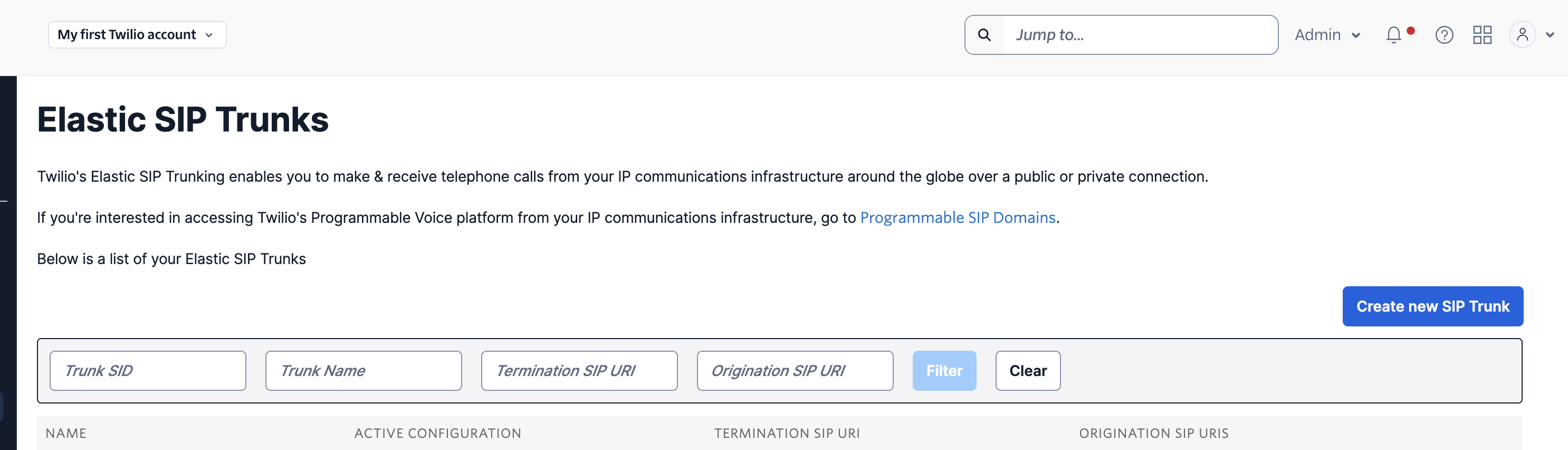
 2.2 Click **Create new SIP Trunk**
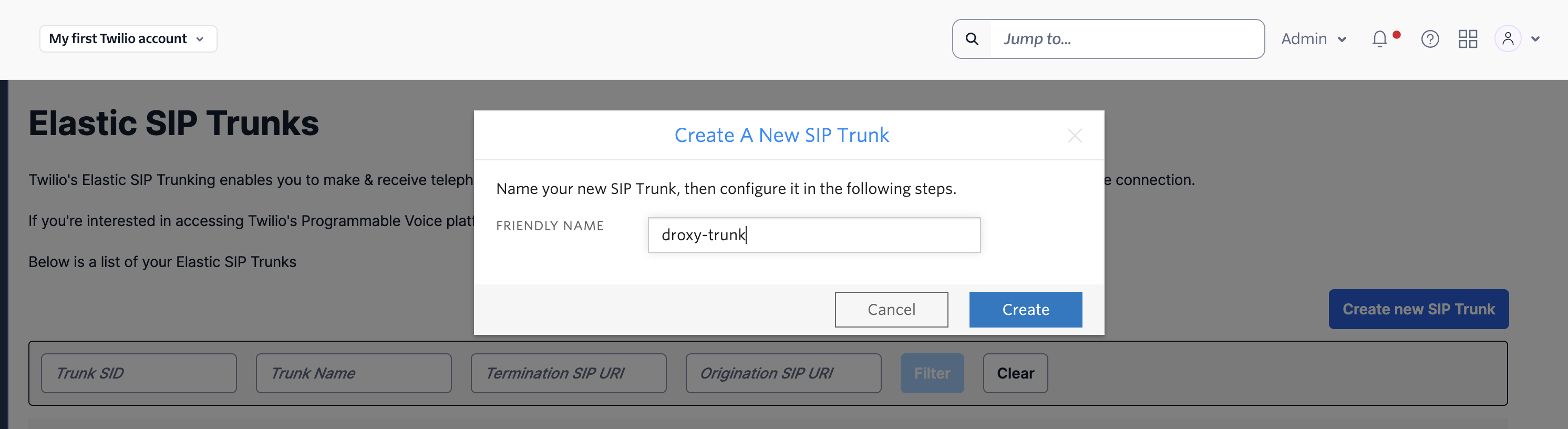
 2.3 Enter a name for your trunk (e.g., `droxy-trunk`) and click **Create**
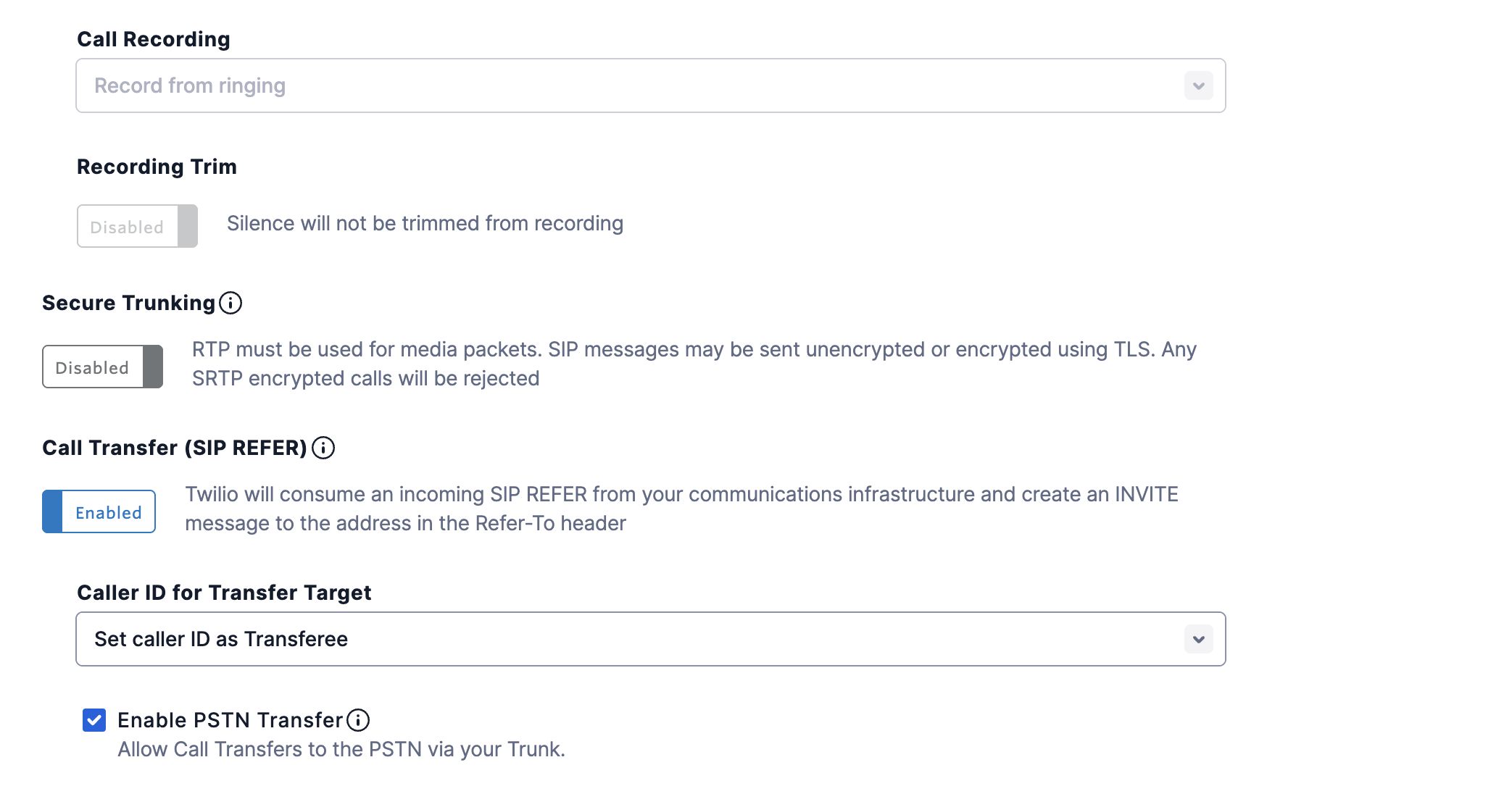
 2.4 Configure your trunk settings:
In the **General** tab, enable call transfer by toggling the **Call Transfer** switch, then check the **Enable PSTN Transfer** checkbox, then click **Save**
2.4 Configure your trunk settings:
In the **General** tab, enable call transfer by toggling the **Call Transfer** switch, then check the **Enable PSTN Transfer** checkbox, then click **Save**
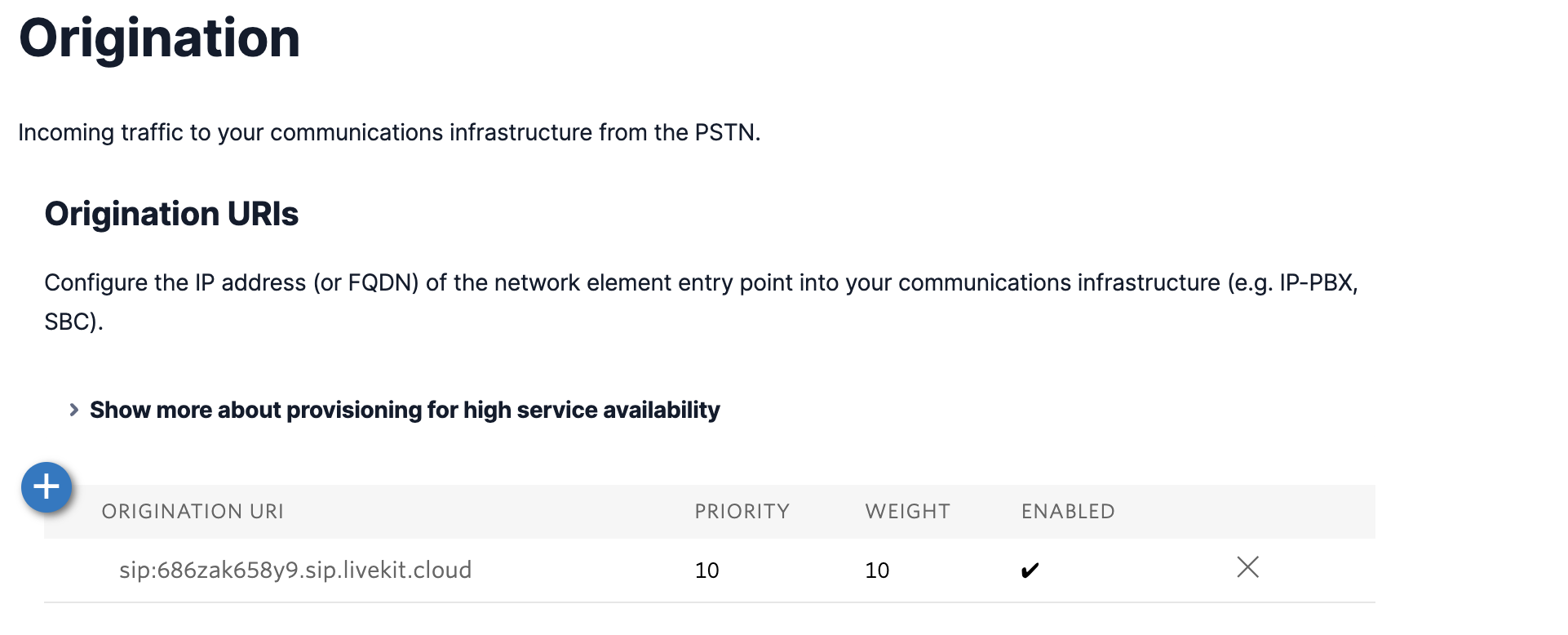
 In the **Origination** tab, navigate to the **Origination URIs** section and click the **+** button to add a new origination URI
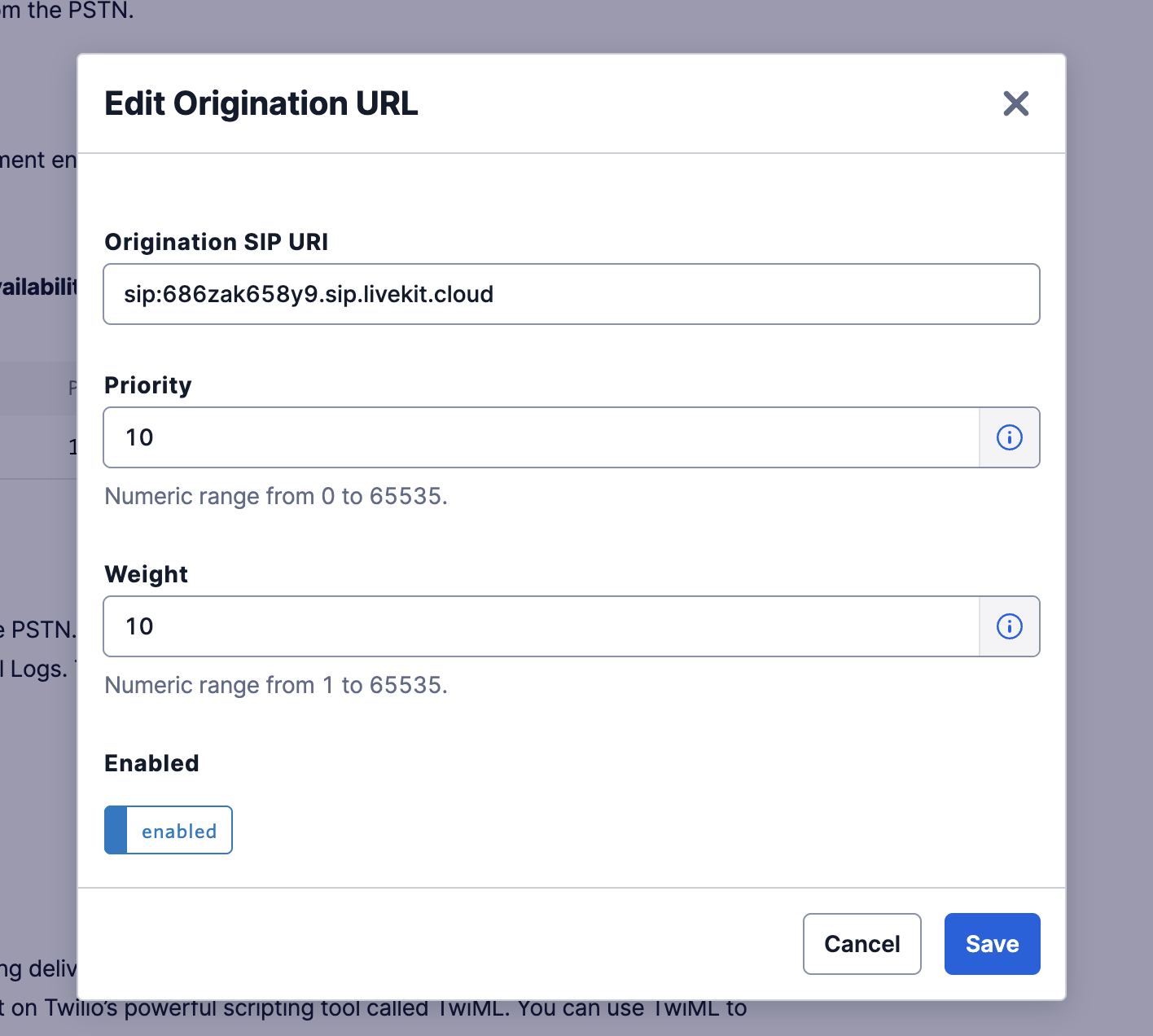
 Enter `sip:686zak658y9.sip.livekit.cloud` as the Origination SIP URI and click **Save**
 3. In your **Integrations** > **Phone Numbers** page, click **Import from Twilio**
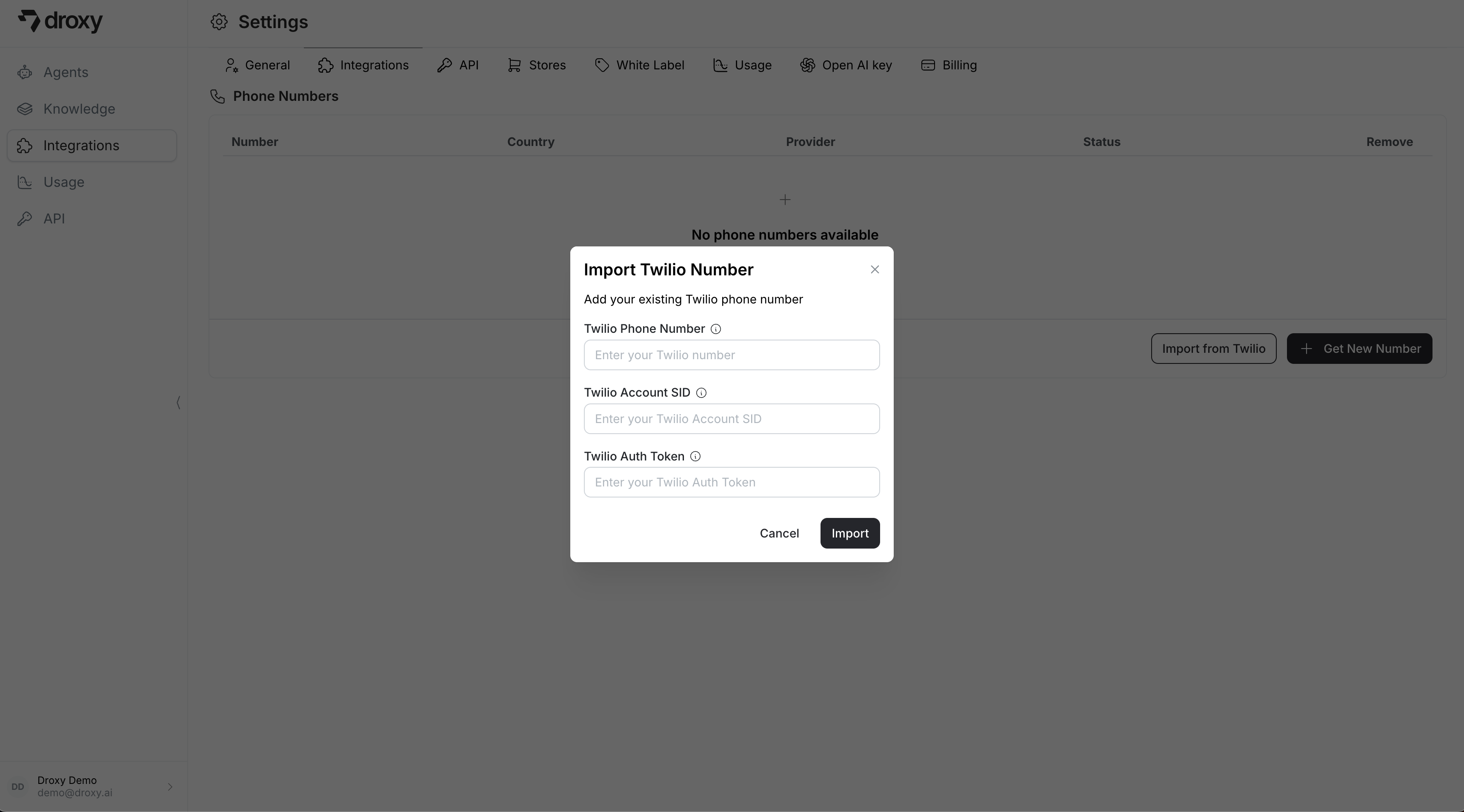 4. You'll need to provide:
* Your Twilio phone number (in international format, e.g., +1XXXXXXXXXX)
* Twilio Account SID (found in your [Twilio Console](https://console.twilio.com/))
* Twilio Auth Token (found in your [Twilio Console](https://console.twilio.com/))
5. Click **Import** to complete the process
**Trial Account Limitation**: If you're testing with a Twilio trial account and hear a message saying "this phone number isn't configured to take inbound calls" when calling your number, this is likely due to Twilio's trial account restrictions ([Error 21264](https://www.twilio.com/docs/api/errors/21264)).
Trial accounts can only receive calls from verified caller IDs. You can either:
* **Upgrade your Twilio account** to remove this limitation, or
* **Add your test phone number as a verified caller ID** by following [this guide](https://help.twilio.com/articles/223180048-How-to-Add-and-Remove-a-Verified-Phone-Number-or-Caller-ID-with-Twilio) or directly in your [Twilio Console Verified Caller IDs section](https://console.twilio.com/us1/develop/phone-numbers/manage/verified)
## Managing Phone Numbers
After adding a phone number, you will see it in the list below. You can then follow this [guide](/documentation/agents/phone#3-connect-your-phone-number) to connect it to a Phone Agent.
You can only connect one number to each Phone Agent. Once connected, you can disconnect it and connect to a different number.
4. You'll need to provide:
* Your Twilio phone number (in international format, e.g., +1XXXXXXXXXX)
* Twilio Account SID (found in your [Twilio Console](https://console.twilio.com/))
* Twilio Auth Token (found in your [Twilio Console](https://console.twilio.com/))
5. Click **Import** to complete the process
**Trial Account Limitation**: If you're testing with a Twilio trial account and hear a message saying "this phone number isn't configured to take inbound calls" when calling your number, this is likely due to Twilio's trial account restrictions ([Error 21264](https://www.twilio.com/docs/api/errors/21264)).
Trial accounts can only receive calls from verified caller IDs. You can either:
* **Upgrade your Twilio account** to remove this limitation, or
* **Add your test phone number as a verified caller ID** by following [this guide](https://help.twilio.com/articles/223180048-How-to-Add-and-Remove-a-Verified-Phone-Number-or-Caller-ID-with-Twilio) or directly in your [Twilio Console Verified Caller IDs section](https://console.twilio.com/us1/develop/phone-numbers/manage/verified)
## Managing Phone Numbers
After adding a phone number, you will see it in the list below. You can then follow this [guide](/documentation/agents/phone#3-connect-your-phone-number) to connect it to a Phone Agent.
You can only connect one number to each Phone Agent. Once connected, you can disconnect it and connect to a different number.
