> ## Documentation Index
> Fetch the complete documentation index at: https://docs.droxy.ai/llms.txt
> Use this file to discover all available pages before exploring further.
# Unlimited Usage
> Use your own API keys for unlimited usage at provider rates
This feature is available exclusively for Enterprise plan customers.
## What are External Providers?
External providers allow enterprise customers to connect their own API keys from leading AI services directly to Droxy, bypassing Droxy's usage system for cost-effective unlimited usage. Instead of consuming Droxy tokens, your agents and knowledge items will use your own credits directly with the provider.
Key Benefits:
* **Direct provider pricing** - Pay exactly what OpenAI, OpenRouter, and other providers charge per token/second
* **Cost control** - Manage your own spending and billing relationship
* **No usage limits** - Never worry about running out of Droxy tokens again
## OpenRouter
* **What it covers:** Message tokens (e.g. Website Agent, WhatsApp Agent, etc.)
* **Use case:** High-volume messaging scenarios with access to multiple LLM models
* **Benefits:** Covers all text-based models available on Droxy
### Setup
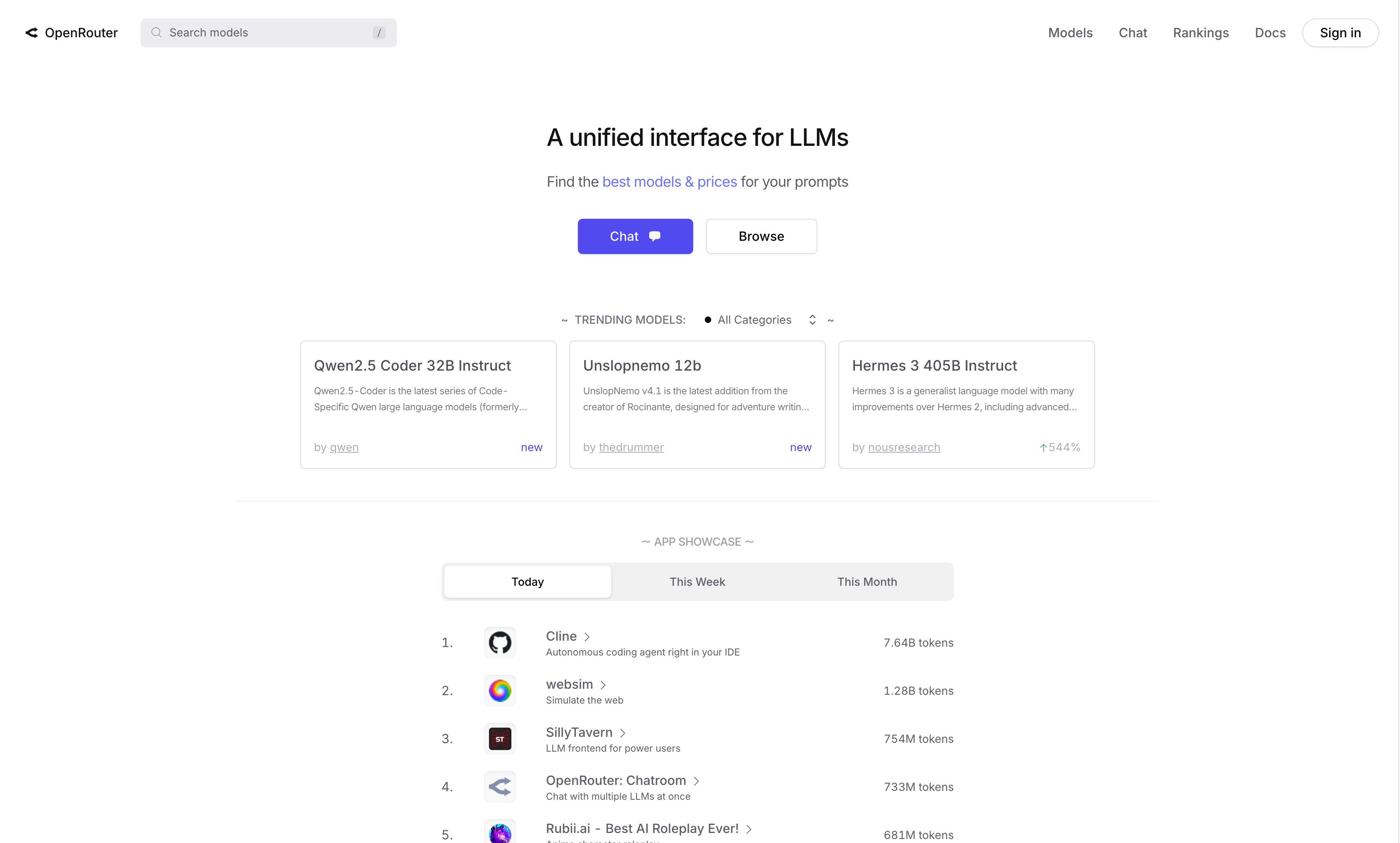
#### 1. Create an OpenRouter Account
Visit [OpenRouter.ai](https://openrouter.ai) and create your account.
 #### 2. Sign Up and Generate API Key
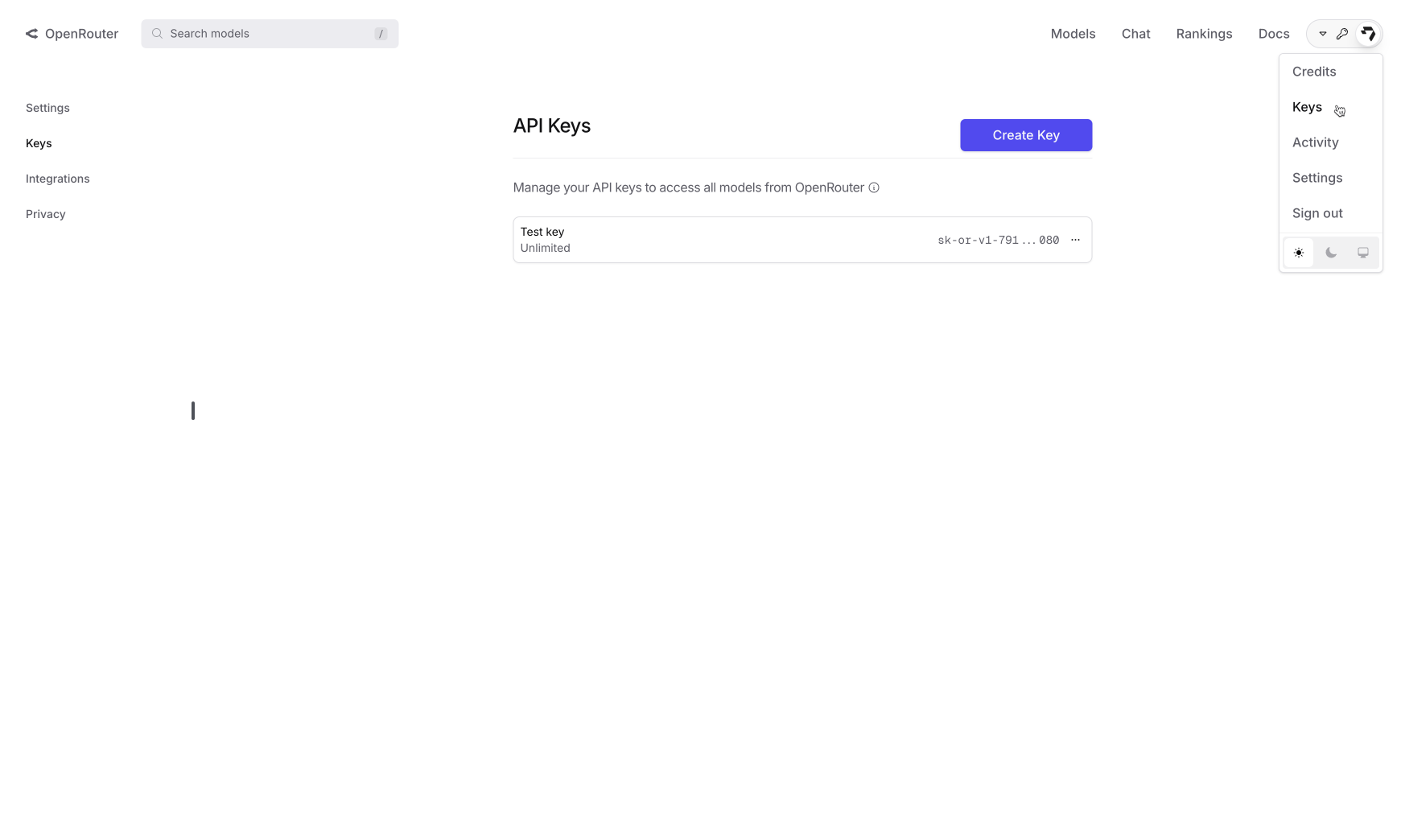
After signing up, navigate to the API Keys section to create your key.
#### 2. Sign Up and Generate API Key
After signing up, navigate to the API Keys section to create your key.
 #### 3. Add Credits
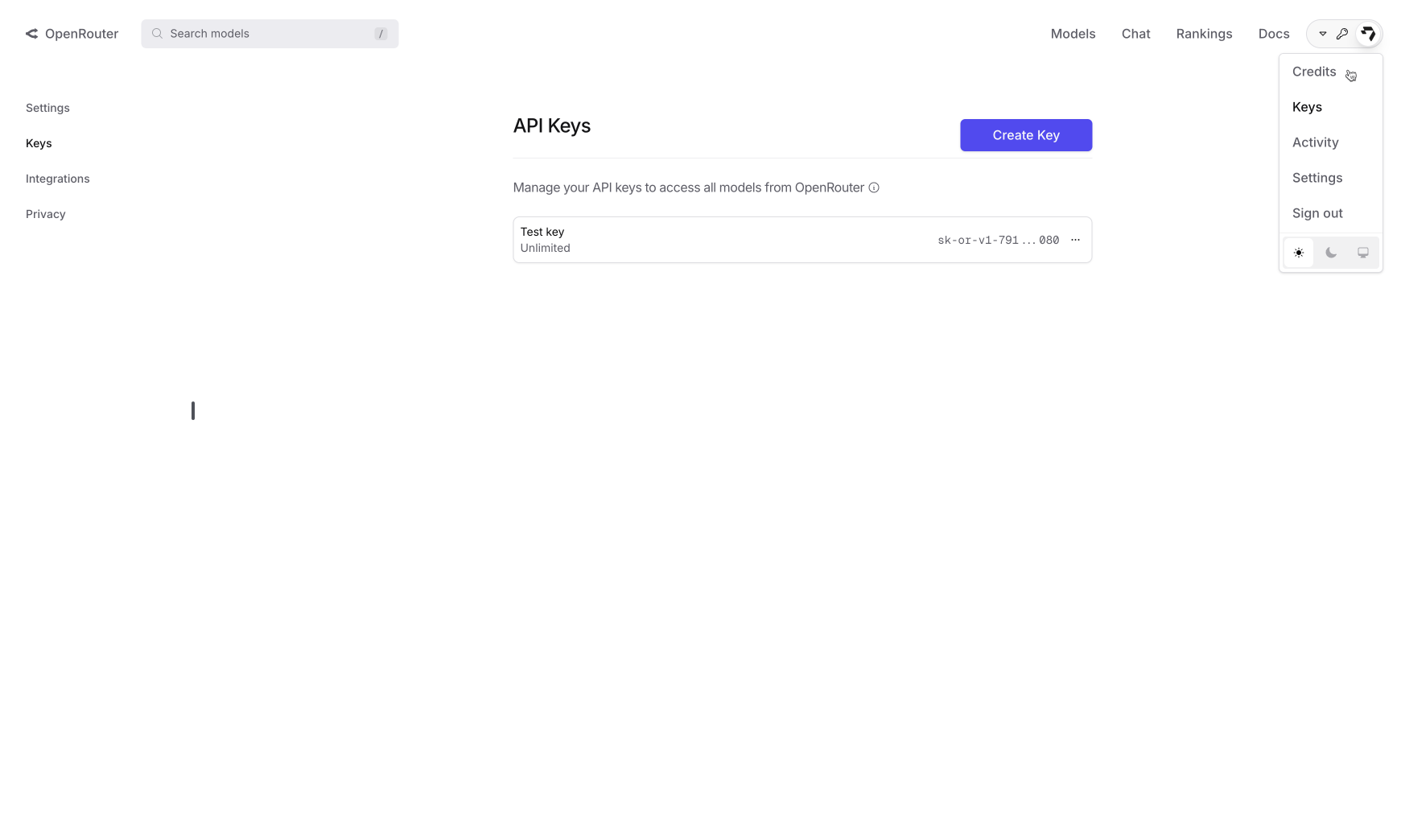
Access the Credits menu from the navigation bar:
#### 3. Add Credits
Access the Credits menu from the navigation bar:
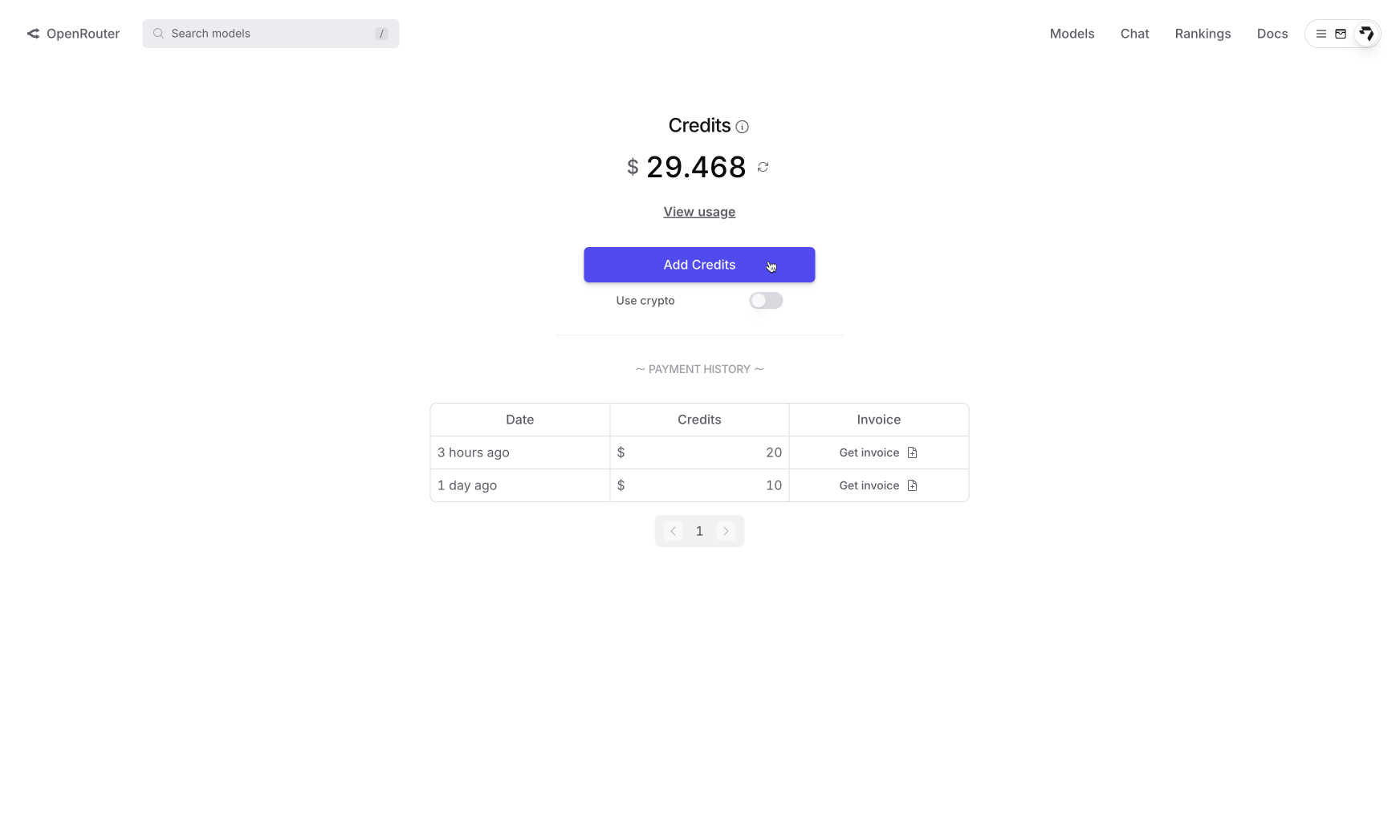
 Load credits to your account to start using the service:
 Enable automatic refill in your OpenRouter account to ensure your agents continue working when credits run low. This prevents service interruption due to insufficient credits.
#### 4. Activate in Droxy
You must add credits to your OpenRouter account before you can successfully add your API key to Droxy. Without credits, the API key validation will fail and cannot be activated.
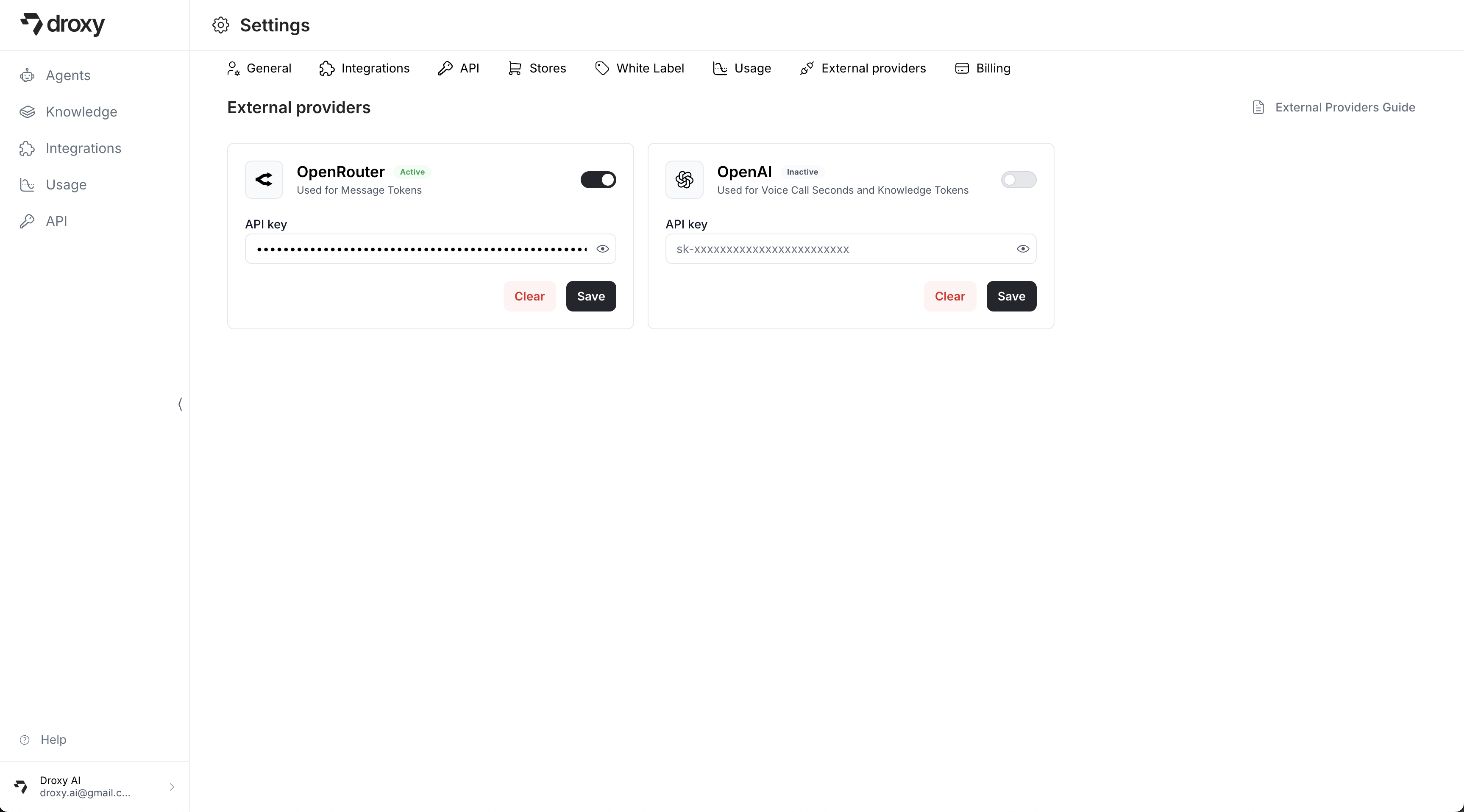
1. Navigate to **Settings** > **External providers** in your Droxy dashboard
2. Find the **OpenRouter** card
3. Enter your OpenRouter API key
4. Toggle the switch to **Enable**
5. Click **Save** to validate and activate the integration
Enable automatic refill in your OpenRouter account to ensure your agents continue working when credits run low. This prevents service interruption due to insufficient credits.
#### 4. Activate in Droxy
You must add credits to your OpenRouter account before you can successfully add your API key to Droxy. Without credits, the API key validation will fail and cannot be activated.
1. Navigate to **Settings** > **External providers** in your Droxy dashboard
2. Find the **OpenRouter** card
3. Enter your OpenRouter API key
4. Toggle the switch to **Enable**
5. Click **Save** to validate and activate the integration
 ## OpenAI
For text-based agents (Website Agent, WhatsApp Agent, etc.), even when using OpenAI models, you need to use OpenRouter as your external provider, not OpenAI. The OpenAI external provider is exclusively for Voice Call Seconds (Phone Agents) and Knowledge Tokens.
* **What it covers:** Voice call seconds and knowledge tokens (embeddings)
* **Use case:** Organizations with high voice usage or large knowledge bases
* **Benefits:** Direct OpenAI pricing for voice and embeddings processing
### Setup
#### 1. Generate API Key
Visit [platform.openai.com/api-keys](https://platform.openai.com/api-keys) to access your API keys dashboard.
## OpenAI
For text-based agents (Website Agent, WhatsApp Agent, etc.), even when using OpenAI models, you need to use OpenRouter as your external provider, not OpenAI. The OpenAI external provider is exclusively for Voice Call Seconds (Phone Agents) and Knowledge Tokens.
* **What it covers:** Voice call seconds and knowledge tokens (embeddings)
* **Use case:** Organizations with high voice usage or large knowledge bases
* **Benefits:** Direct OpenAI pricing for voice and embeddings processing
### Setup
#### 1. Generate API Key
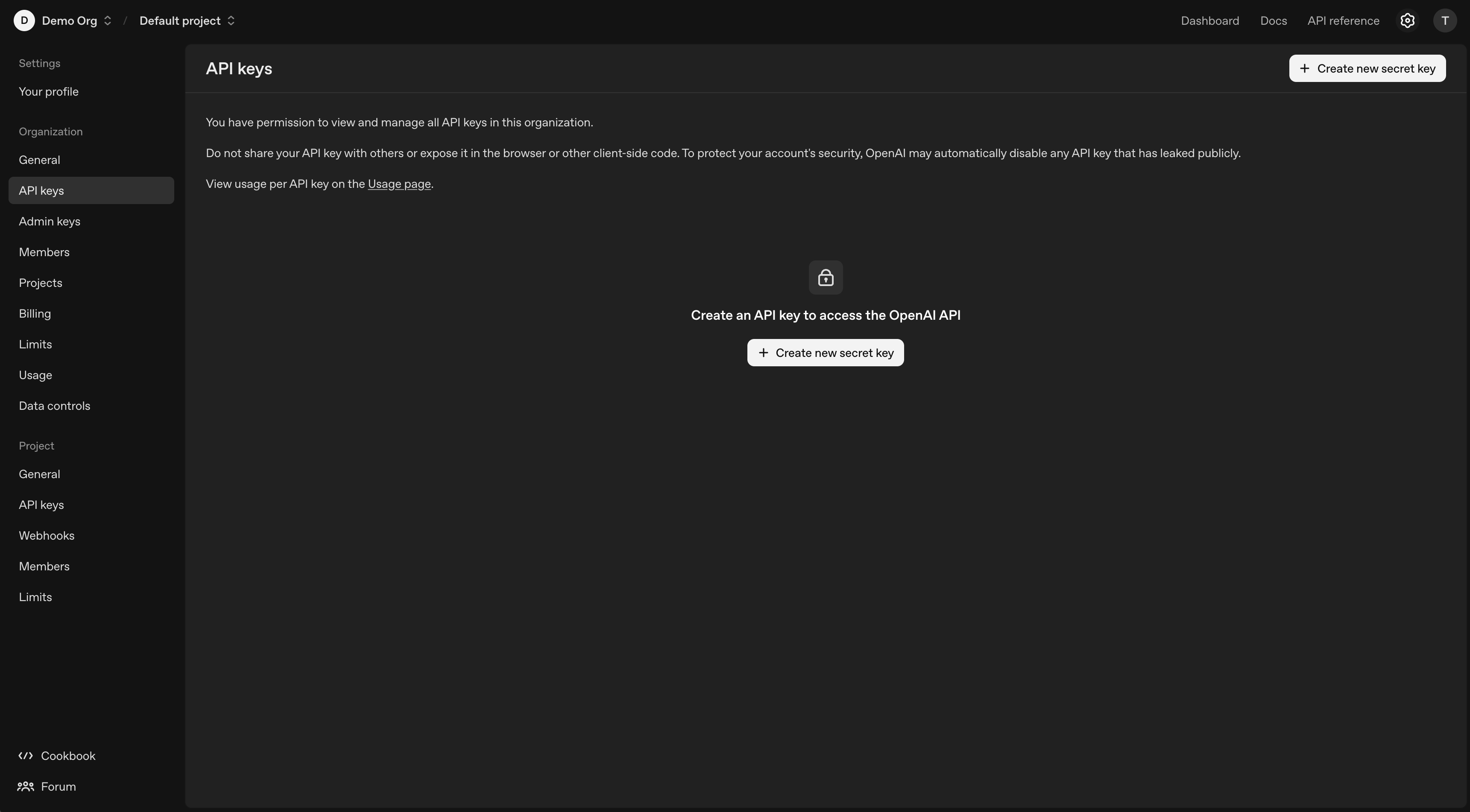
Visit [platform.openai.com/api-keys](https://platform.openai.com/api-keys) to access your API keys dashboard.
 #### 2. Create New API Key
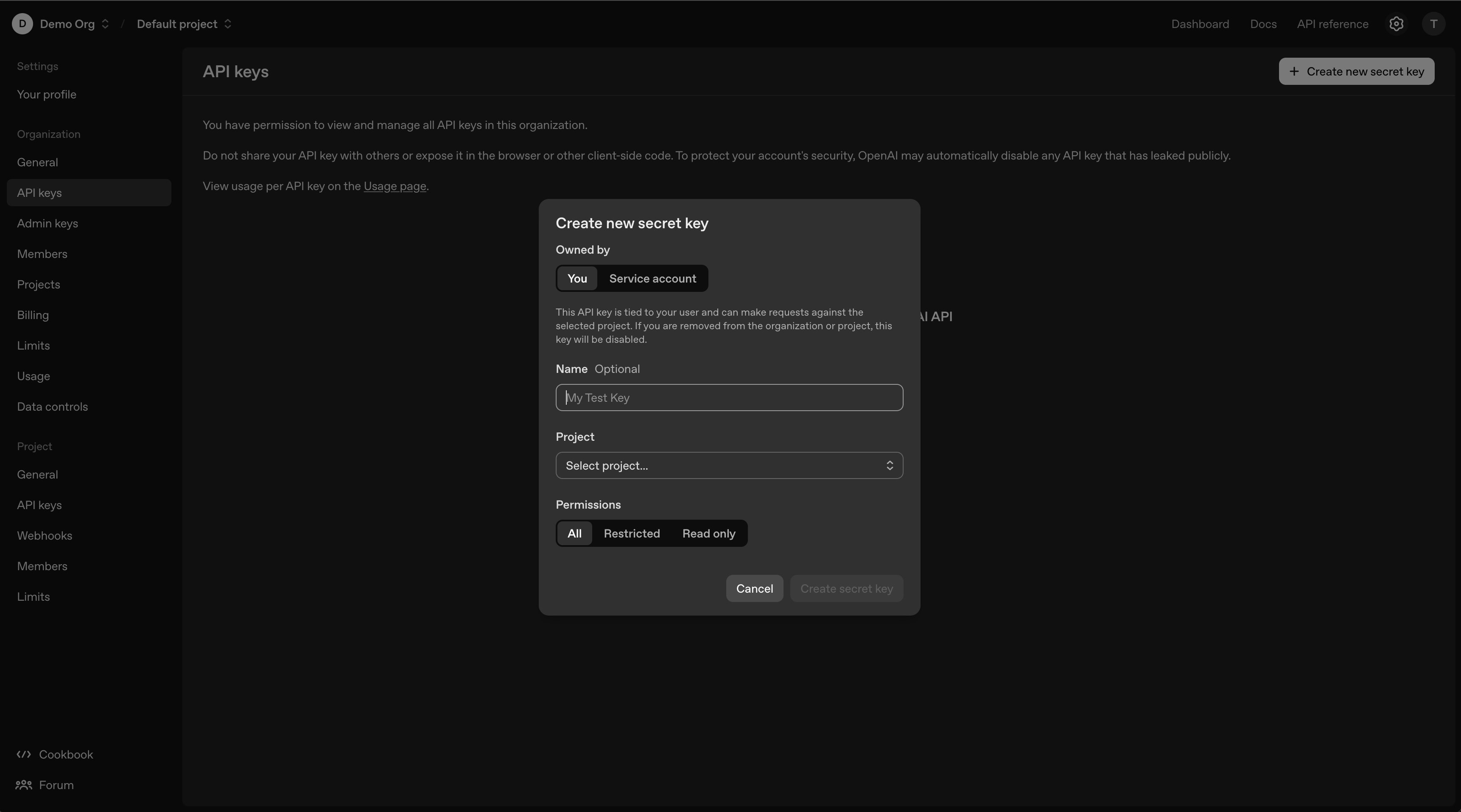
Click **Create new secret key** to generate your API key.
#### 2. Create New API Key
Click **Create new secret key** to generate your API key.
 #### 3. Activate in Droxy
1. Navigate to **Settings** > **External providers** in your Droxy dashboard
2. Find the **OpenAI** section
3. Enter your OpenAI API key
4. Toggle the switch to **Enable**
5. Click **Save** to validate and activate the integration
#### 3. Activate in Droxy
1. Navigate to **Settings** > **External providers** in your Droxy dashboard
2. Find the **OpenAI** section
3. Enter your OpenAI API key
4. Toggle the switch to **Enable**
5. Click **Save** to validate and activate the integration
 ## Usage
Once activated, your configured external providers will automatically be used instead of Droxy's internal tokens and credits. You can use as much as your provider credit balances allow, with pricing directly from each model provider.
External provider integration only applies to the specific services covered by each provider. Other Droxy features and limitations remain unchanged.
## Usage
Once activated, your configured external providers will automatically be used instead of Droxy's internal tokens and credits. You can use as much as your provider credit balances allow, with pricing directly from each model provider.
External provider integration only applies to the specific services covered by each provider. Other Droxy features and limitations remain unchanged.