> ## Documentation Index
> Fetch the complete documentation index at: https://docs.droxy.ai/llms.txt
> Use this file to discover all available pages before exploring further.
# Overview
> Manage and organize all your contacts in one place
## What are Contacts?
Contacts in Droxy are individuals who have interacted with your agents. Every conversation is associated with a contact, and Droxy automatically extracts and creates contact records from these interactions.
With the Contacts page, you can:
* View all contacts across all your agents in one centralized location
* Search and filter contacts to find specific individuals quickly
* Manually add new contacts
* Edit and update contact information
* View conversation history for each contact
* Track all interactions a contact has had with your agents
Contacts are automatically created when someone starts a conversation with your agent. Droxy's AI extracts relevant information like name, email, phone number, and social profiles from the conversation and creates a comprehensive contact profile.
## Contacts Table
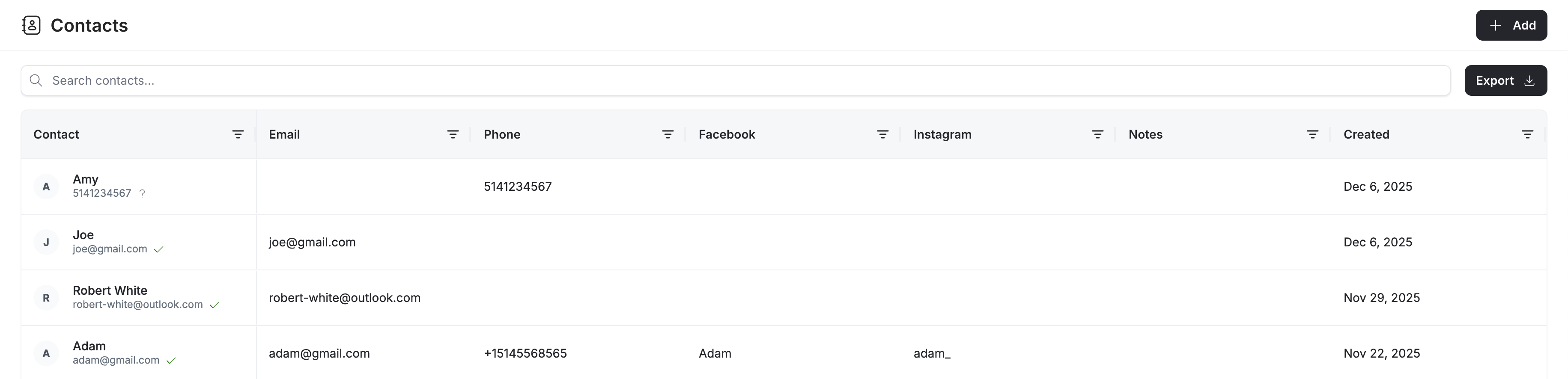 The Contacts page displays all your contacts in a table format. Each row shows key information about a contact including:
* **Name**: The contact's name
* **Email**: Email address
* **Phone**: Phone number
* **Social Profiles**: Links to Facebook, Instagram, and other social media profiles
* **Created At**: When the contact was first created
### Searching and Filtering Contacts
Use the search bar and filters to quickly find specific contacts by any property.
### Adding Contacts Manually
While Droxy automatically creates contacts from conversations, you can also manually add contacts by clicking the **Add Contact** button.
## Editing Contact Details
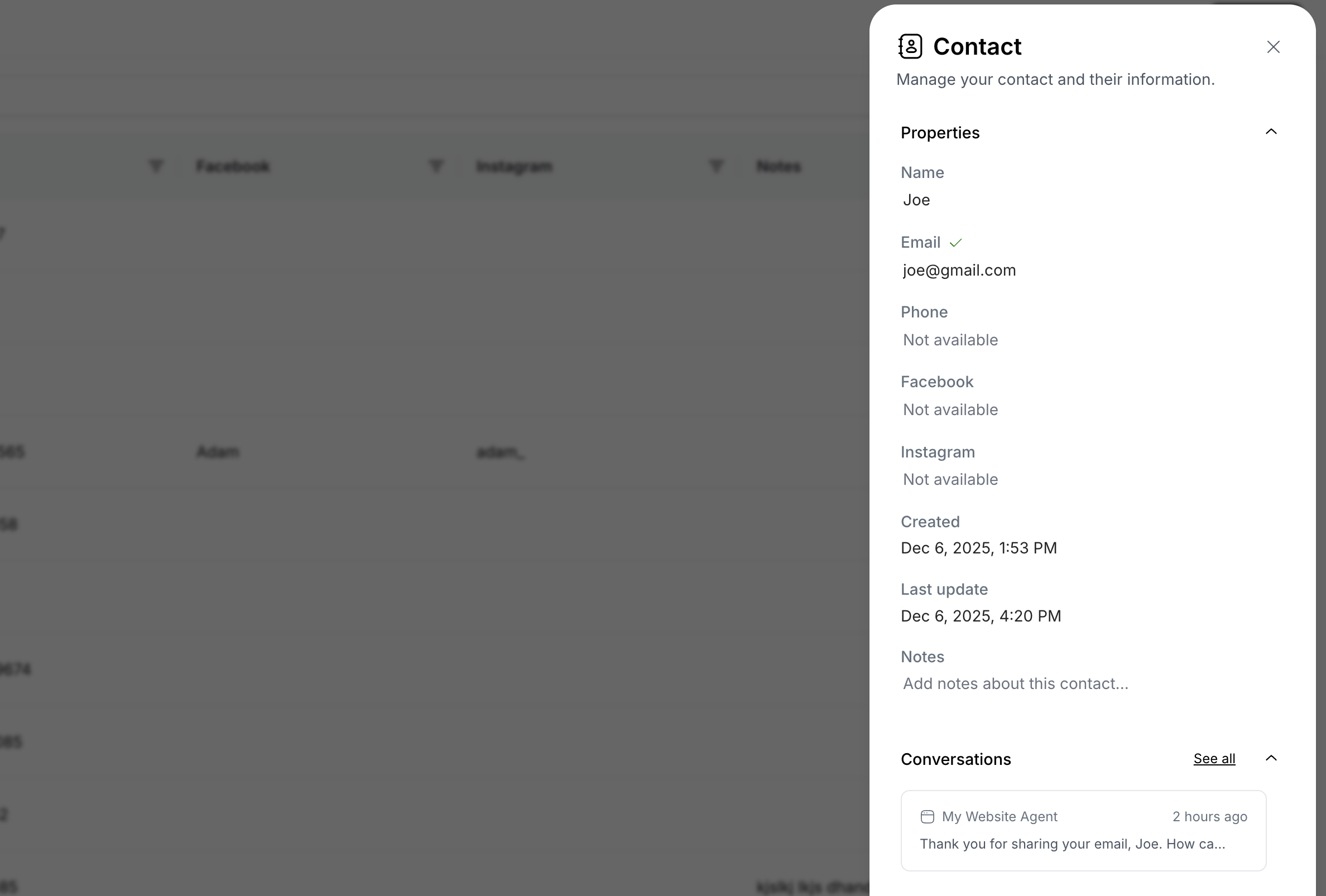
To view and edit a contact's full information, **double-click** on any row in the contacts table. This will open a detailed panel with three main sections:
The Contacts page displays all your contacts in a table format. Each row shows key information about a contact including:
* **Name**: The contact's name
* **Email**: Email address
* **Phone**: Phone number
* **Social Profiles**: Links to Facebook, Instagram, and other social media profiles
* **Created At**: When the contact was first created
### Searching and Filtering Contacts
Use the search bar and filters to quickly find specific contacts by any property.
### Adding Contacts Manually
While Droxy automatically creates contacts from conversations, you can also manually add contacts by clicking the **Add Contact** button.
## Editing Contact Details
To view and edit a contact's full information, **double-click** on any row in the contacts table. This will open a detailed panel with three main sections:
 ### Contact Information
View and edit all contact details:
* **Name**: Contact's full name
* **Email**: Email address
* **Phone**: Phone number
* **Social Profiles**: Links to Facebook, Instagram, and other social media profiles
* **Created At**: When the contact was first created
* **Last Updated**: Most recent update timestamp
* **Notes**: Additional notes or information about the contact
Click on any field to edit the information directly. Changes are saved automatically.
### Conversation History
View all conversations this contact has had with your agents:
* See a chronological list of all interactions
* Click on any conversation to view the full conversation thread
* Quickly understand the complete relationship history with this contact
This section helps you understand the full context of your relationship with each contact and provides insights into their journey with your business.
### Contact Information
View and edit all contact details:
* **Name**: Contact's full name
* **Email**: Email address
* **Phone**: Phone number
* **Social Profiles**: Links to Facebook, Instagram, and other social media profiles
* **Created At**: When the contact was first created
* **Last Updated**: Most recent update timestamp
* **Notes**: Additional notes or information about the contact
Click on any field to edit the information directly. Changes are saved automatically.
### Conversation History
View all conversations this contact has had with your agents:
* See a chronological list of all interactions
* Click on any conversation to view the full conversation thread
* Quickly understand the complete relationship history with this contact
This section helps you understand the full context of your relationship with each contact and provides insights into their journey with your business.