> ## Documentation Index
> Fetch the complete documentation index at: https://docs.droxy.ai/llms.txt
> Use this file to discover all available pages before exploring further.
# WhatsApp Agent
> Learn how to create an agent that you can connect to your WhatsApp number to respond to your customers.
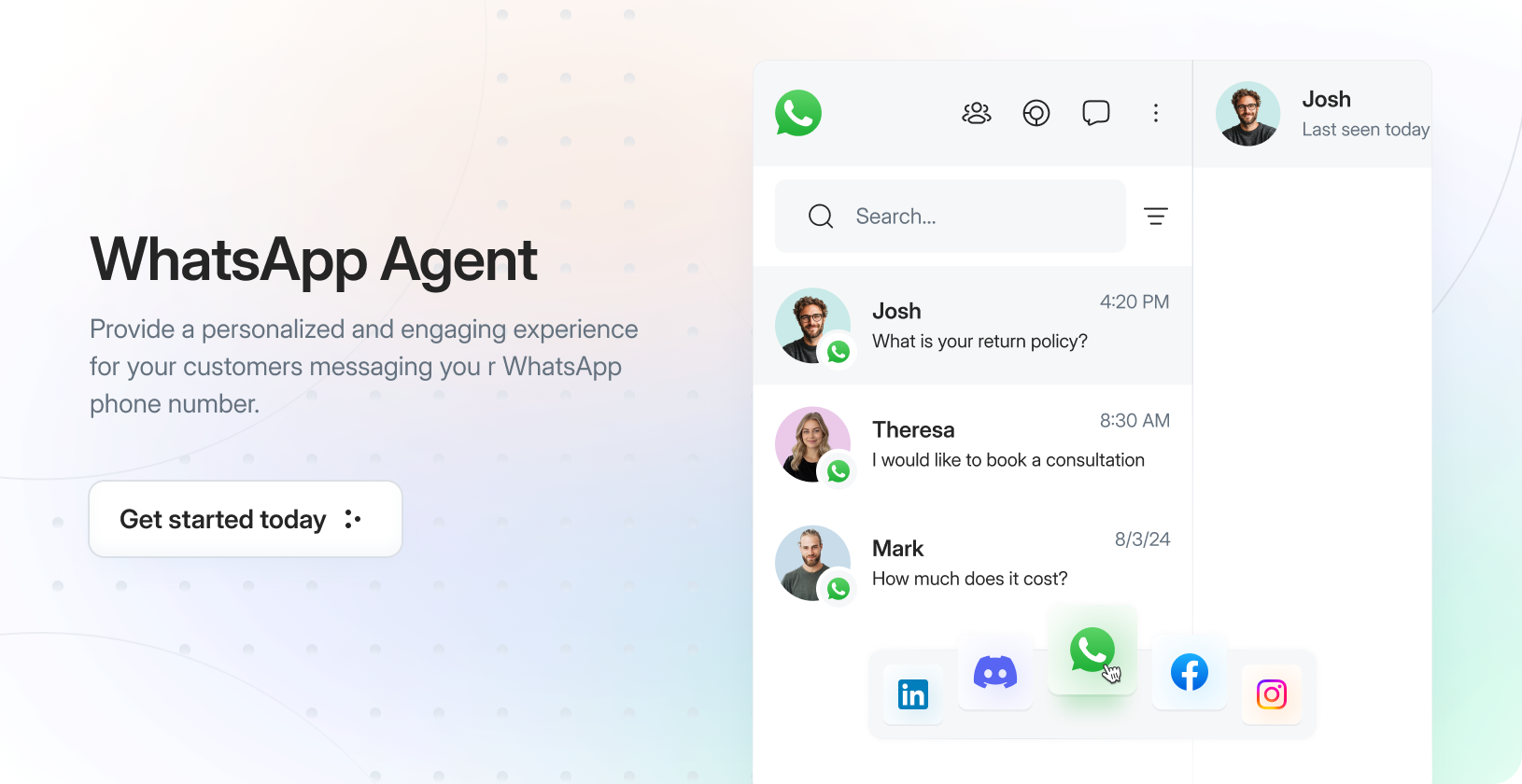 ## What is a WhatsApp Messaging Agent?
It is an LLM-based agent that you can connect to your WhatsApp business account to provide instant support and answers to your customers. The agent:
* Learns from your company's knowledge sources including website content, PDFs, YouTube videos, and other documents
* Provides real-time responses to customer queries based on your specific business information
* Integrates seamlessly with your WhatsApp Business Account
* Answers in your brand's voice in a natural and conversational manner through WhatsApp chats
* Handles multiple customer conversations simultaneously
* Available 24/7 to respond to customer inquiries via WhatsApp
## Connect A WhatsApp Business Account
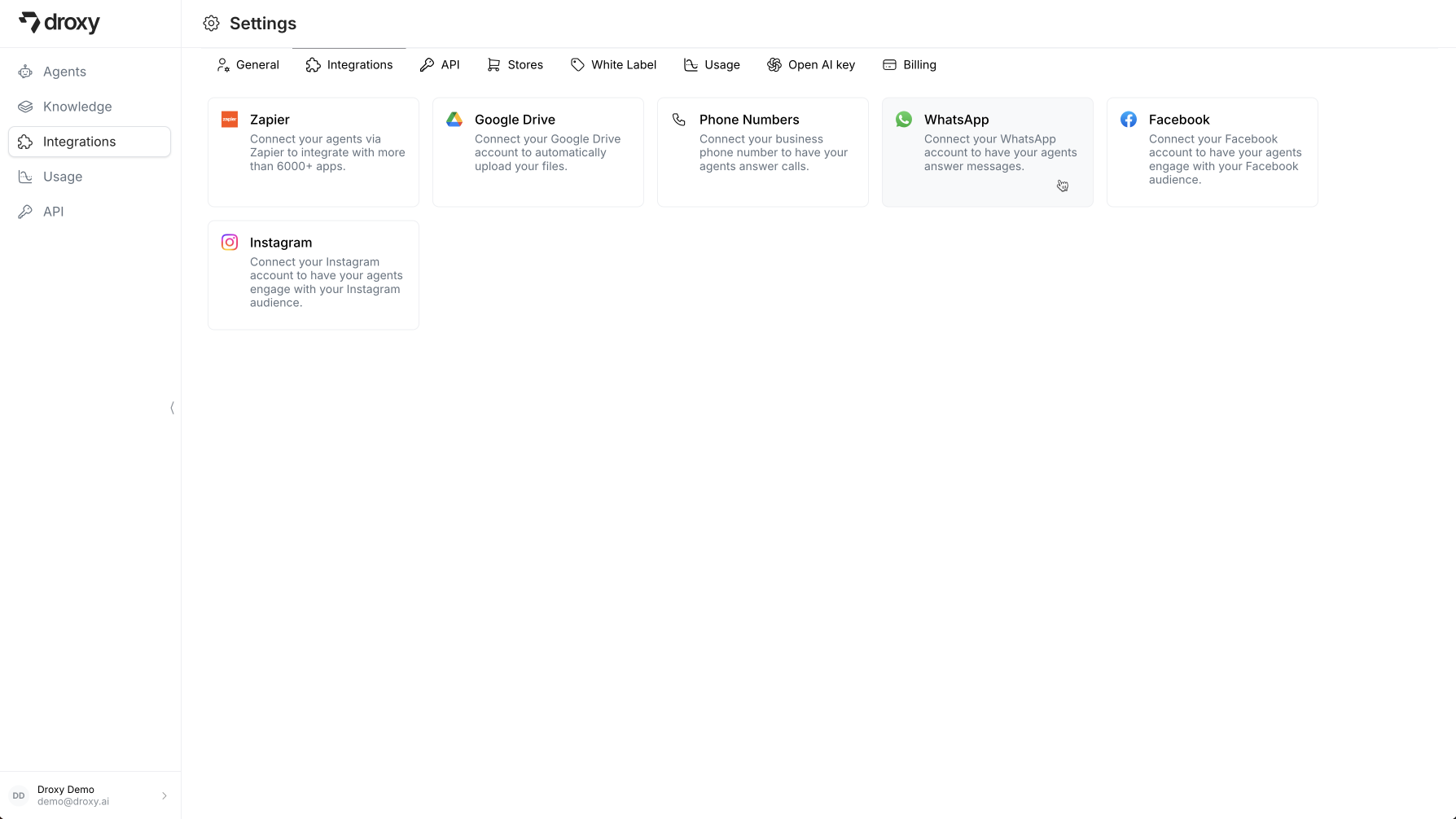
In the Droxy dashboard, go to the **Integrations** section and click on the **WhatsApp** card.
## What is a WhatsApp Messaging Agent?
It is an LLM-based agent that you can connect to your WhatsApp business account to provide instant support and answers to your customers. The agent:
* Learns from your company's knowledge sources including website content, PDFs, YouTube videos, and other documents
* Provides real-time responses to customer queries based on your specific business information
* Integrates seamlessly with your WhatsApp Business Account
* Answers in your brand's voice in a natural and conversational manner through WhatsApp chats
* Handles multiple customer conversations simultaneously
* Available 24/7 to respond to customer inquiries via WhatsApp
## Connect A WhatsApp Business Account
In the Droxy dashboard, go to the **Integrations** section and click on the **WhatsApp** card.
 ### 1. Start the connection process
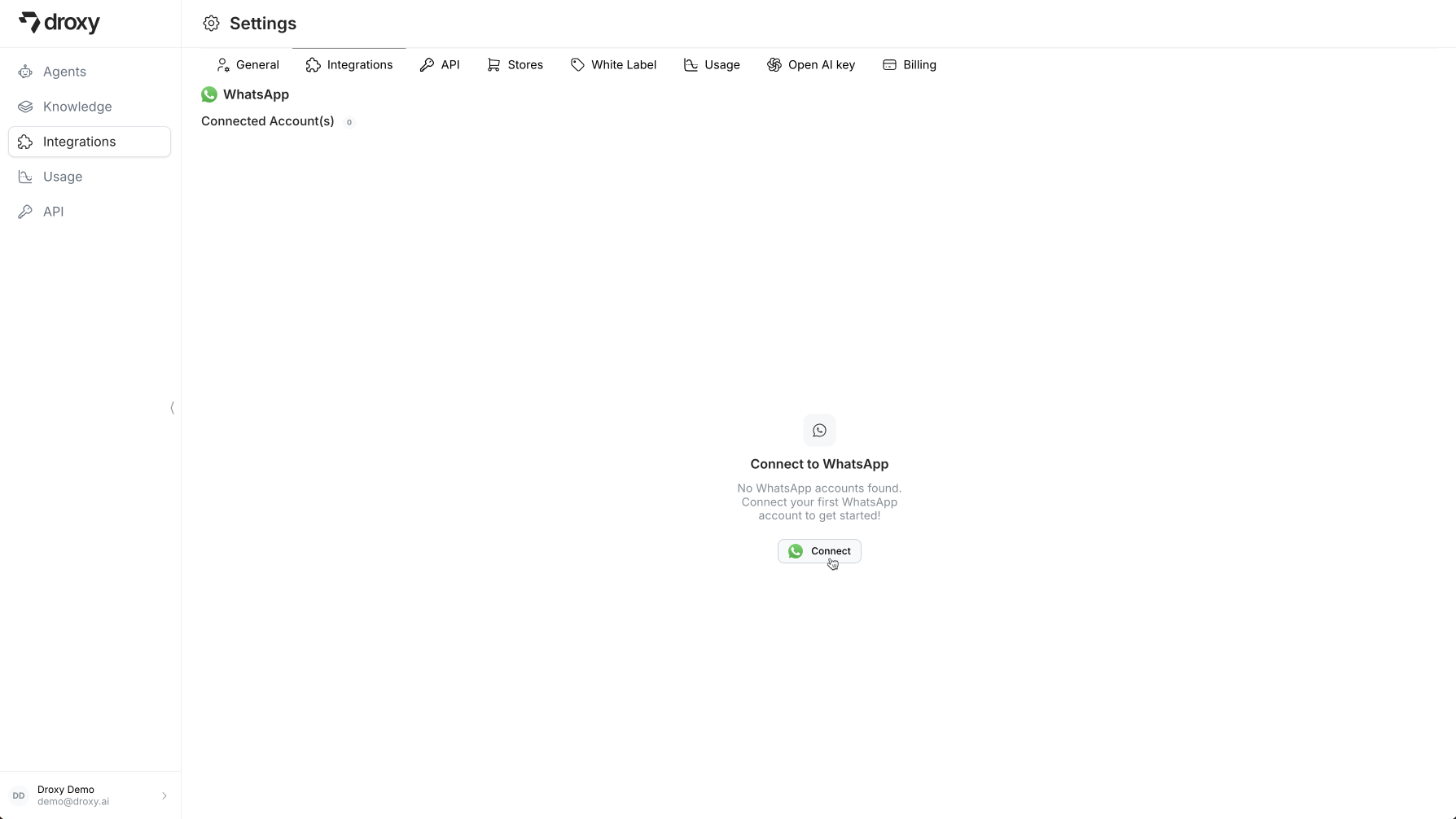
Click on the **Connect** button to connect a WhatsApp Business Account.
### 1. Start the connection process
Click on the **Connect** button to connect a WhatsApp Business Account.
 The WhatsApp phone number integrated with the agent can only be used by the agent. It cannot be used on WhatsApp or WhatsApp Business. If you are already using this phone number with WhatsApp, you must delete your account first to free up the number.
Steps to delete WhatsApp account:
1. Open the WhatsApp or WhatsApp Business app.
2. Navigate to Settings > Account > Delete my account.
3. Confirm the deletion by entering the phone number.
4. Select 'Delete my account'. After a few minutes, your number will be available again.
### 2. Login with your Facebook account
The WhatsApp phone number integrated with the agent can only be used by the agent. It cannot be used on WhatsApp or WhatsApp Business. If you are already using this phone number with WhatsApp, you must delete your account first to free up the number.
Steps to delete WhatsApp account:
1. Open the WhatsApp or WhatsApp Business app.
2. Navigate to Settings > Account > Delete my account.
3. Confirm the deletion by entering the phone number.
4. Select 'Delete my account'. After a few minutes, your number will be available again.
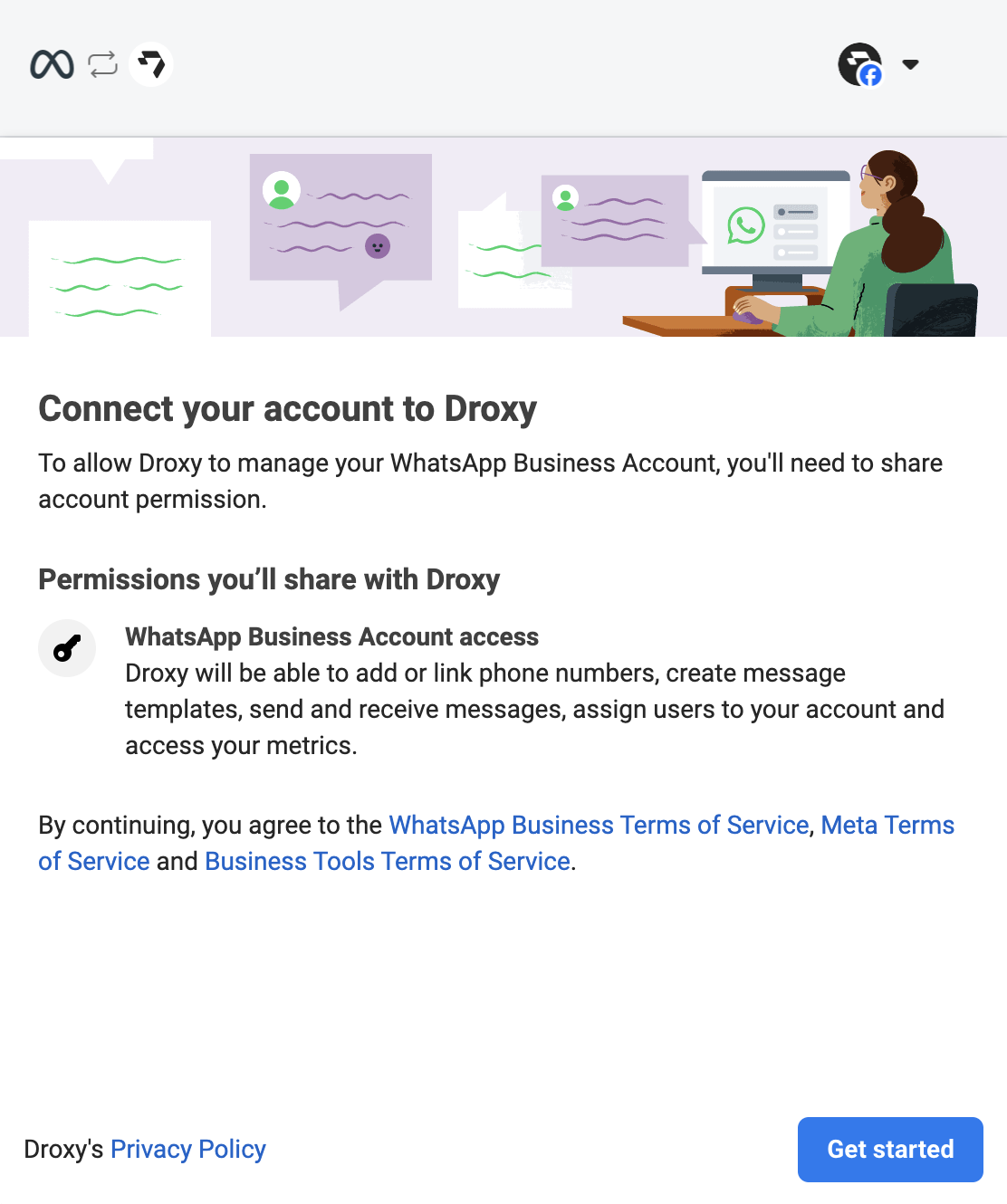
### 2. Login with your Facebook account
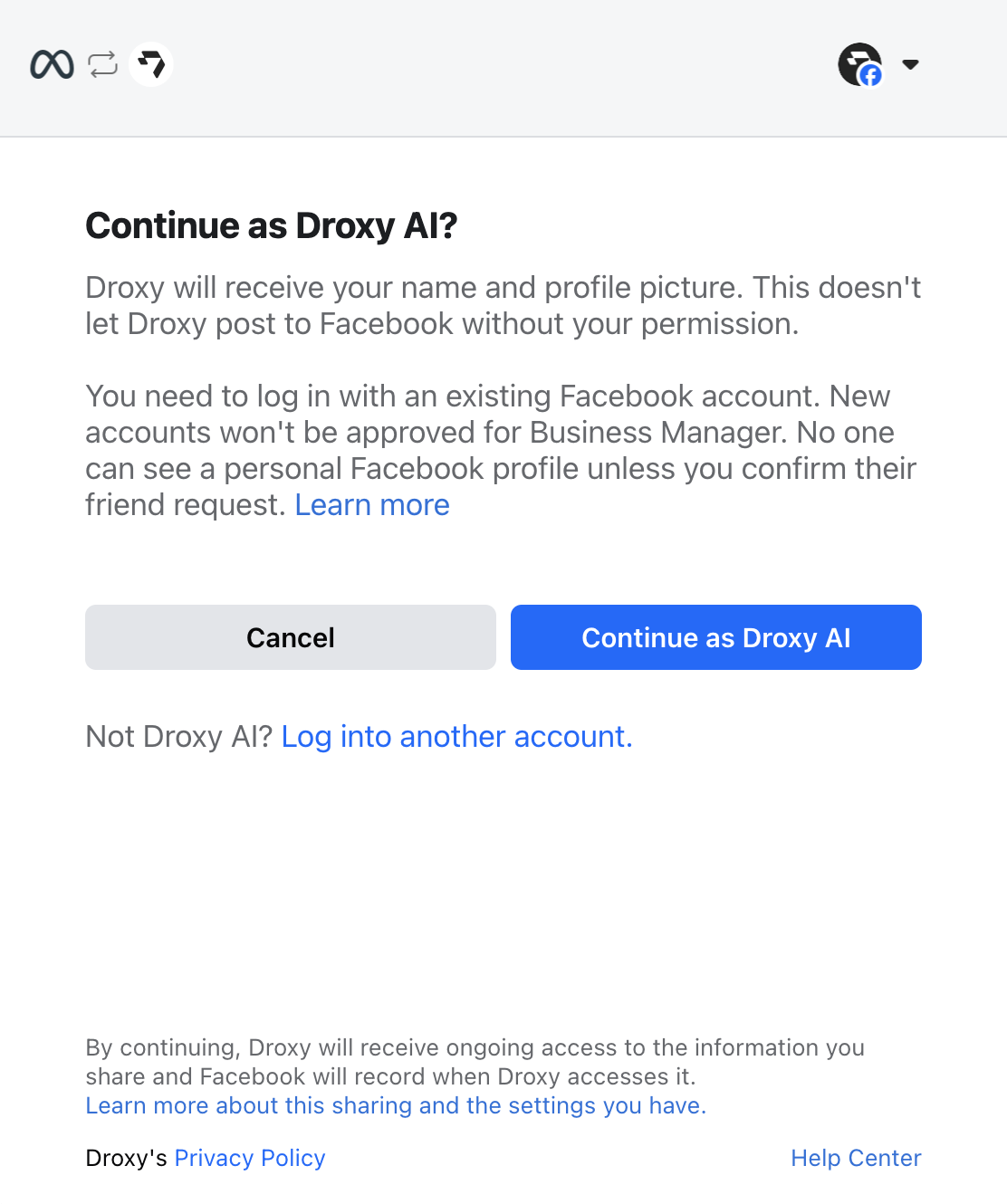 Click on **Get Started** to continue.
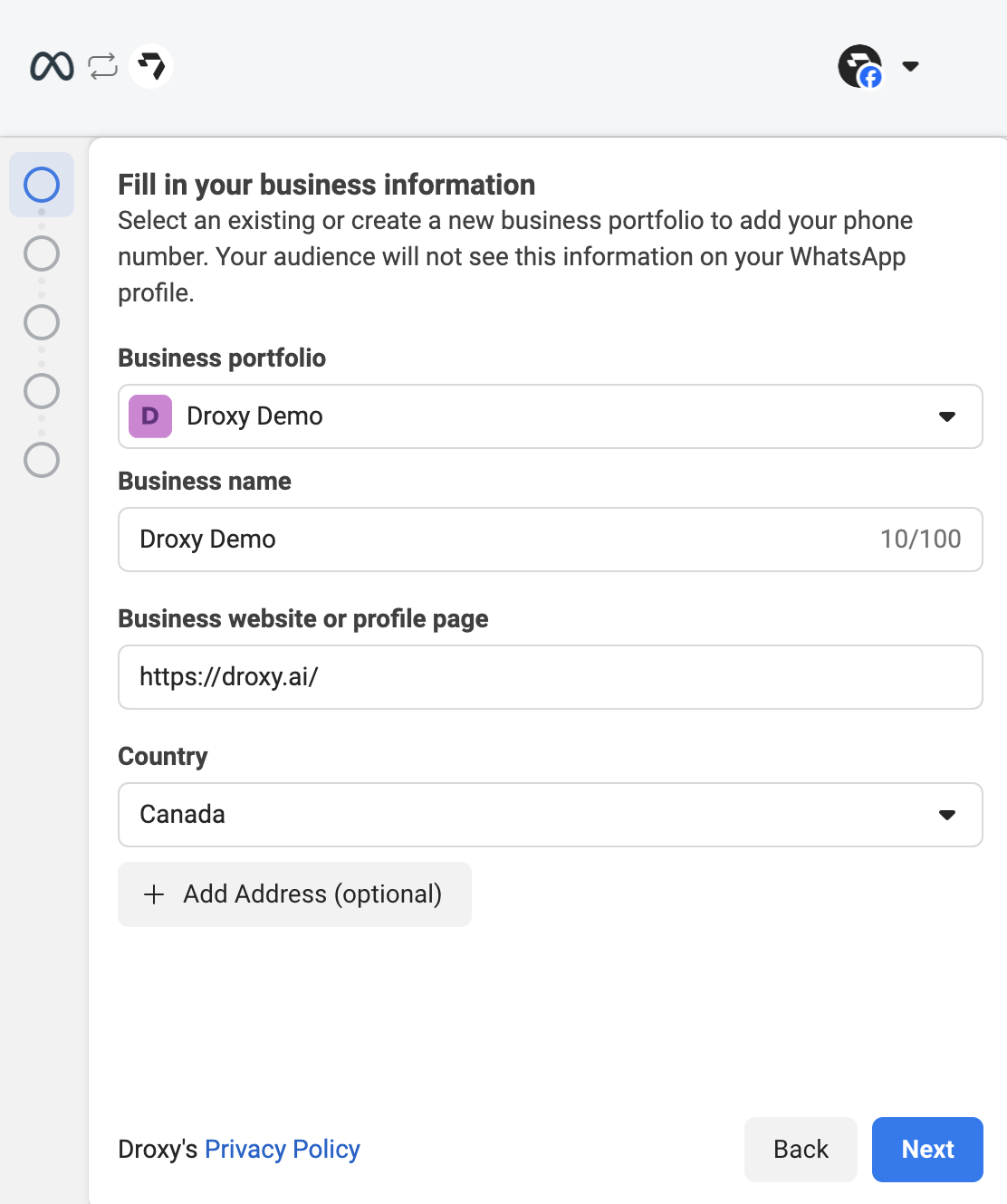
 ### 3. Choose or create a business profile
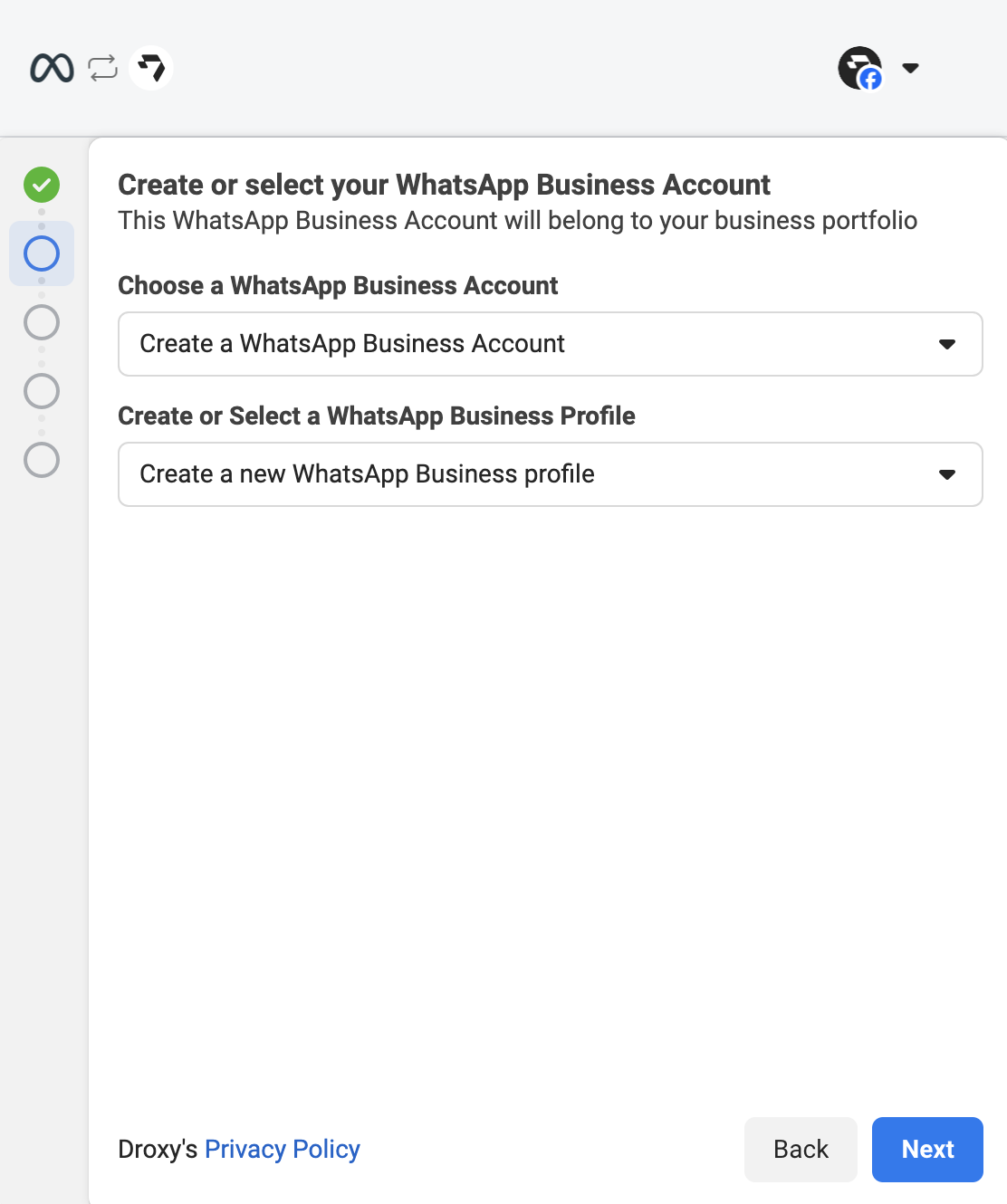
 ### 4. Choose or create a WhatsApp Business Account
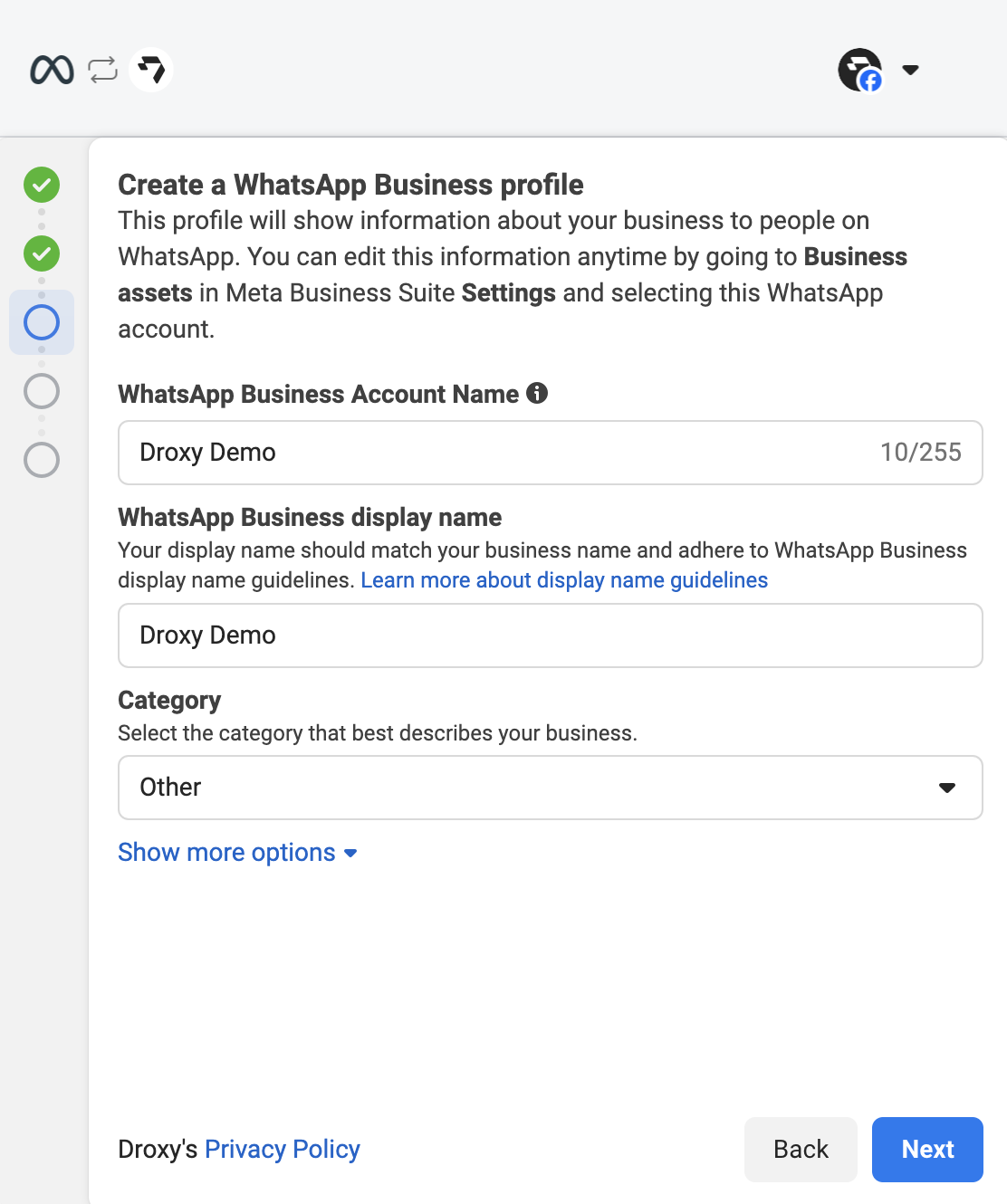
 ### 5. WhatsApp Business Profile (Optional)
If you chose to create a new business account, fill in the required information for your WhatsApp Business Profile.
Please make sure to follow Meta's [display name guidelines](https://www.facebook.com/business/help/757569725593362) as this could affect your account's eligibility to send messages.
### 5. WhatsApp Business Profile (Optional)
If you chose to create a new business account, fill in the required information for your WhatsApp Business Profile.
Please make sure to follow Meta's [display name guidelines](https://www.facebook.com/business/help/757569725593362) as this could affect your account's eligibility to send messages.
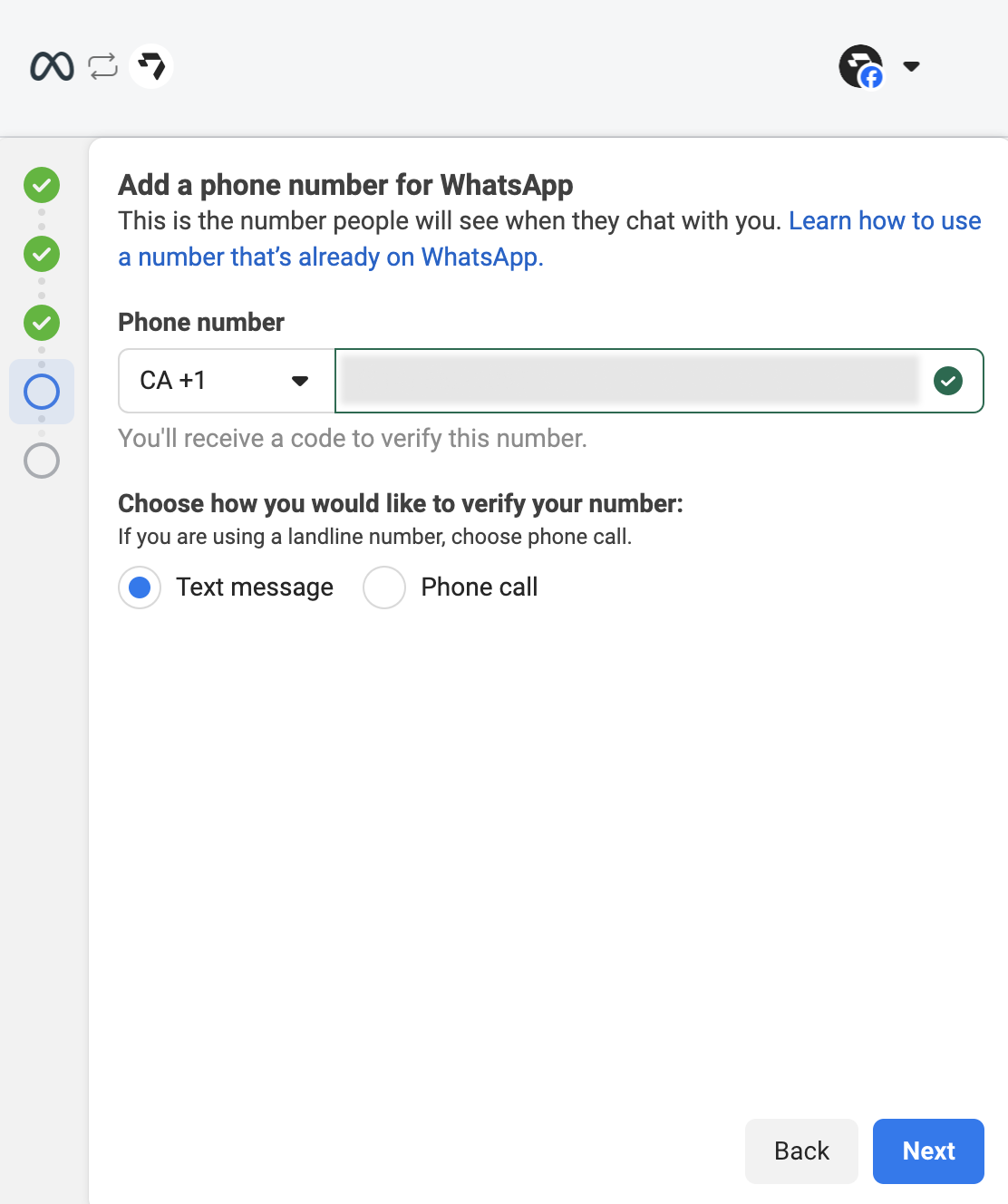
 ### 6. WhatsApp Business Phone Number (Optional)
If you do not have a phone number in your WhatsApp Business Account, add a phone number and verify it.
### 6. WhatsApp Business Phone Number (Optional)
If you do not have a phone number in your WhatsApp Business Account, add a phone number and verify it.
 ### 7. Confirm the connection
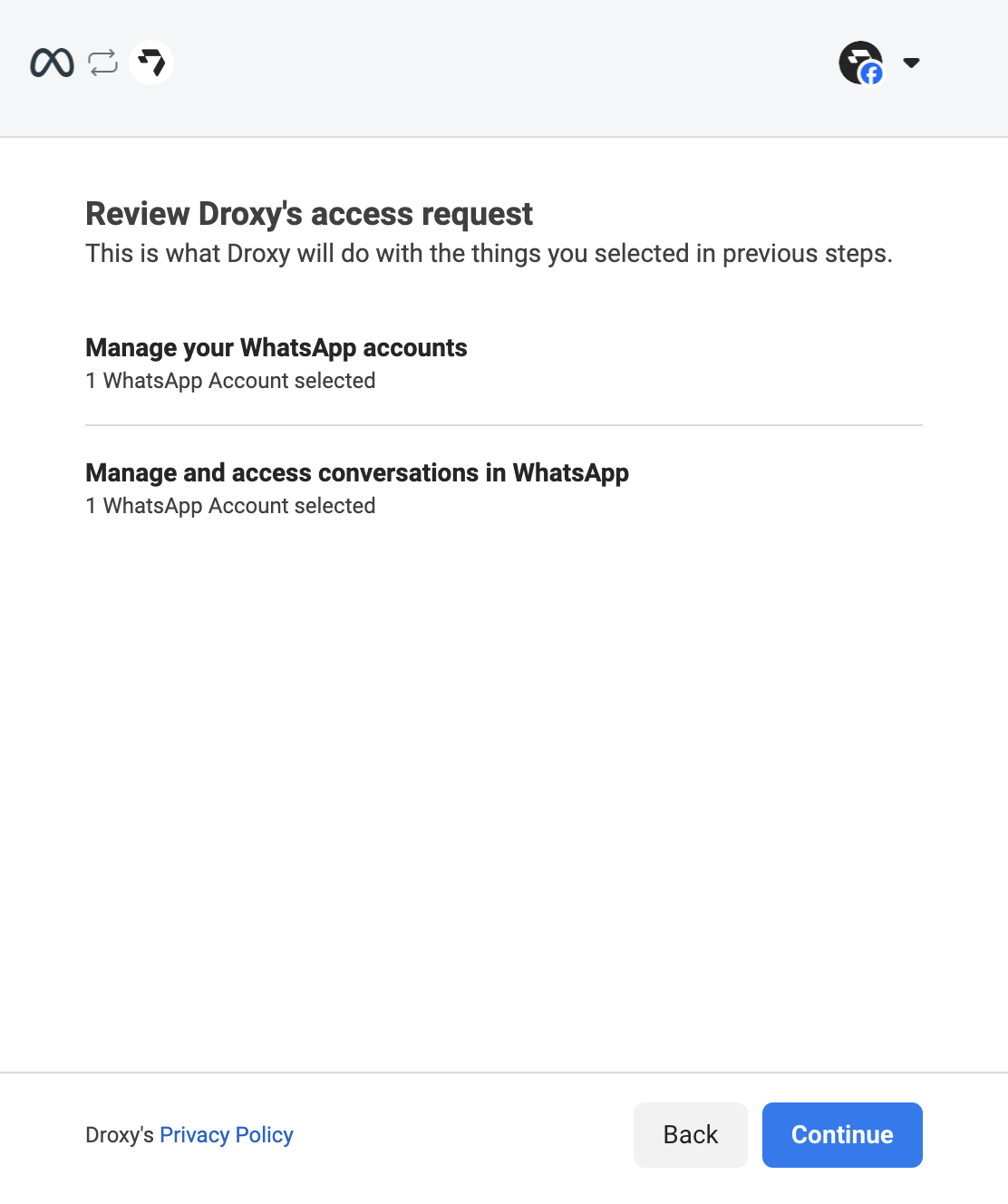
Click on **Continue** to allow Droxy to access your WhatsApp Business Account.
### 7. Confirm the connection
Click on **Continue** to allow Droxy to access your WhatsApp Business Account.
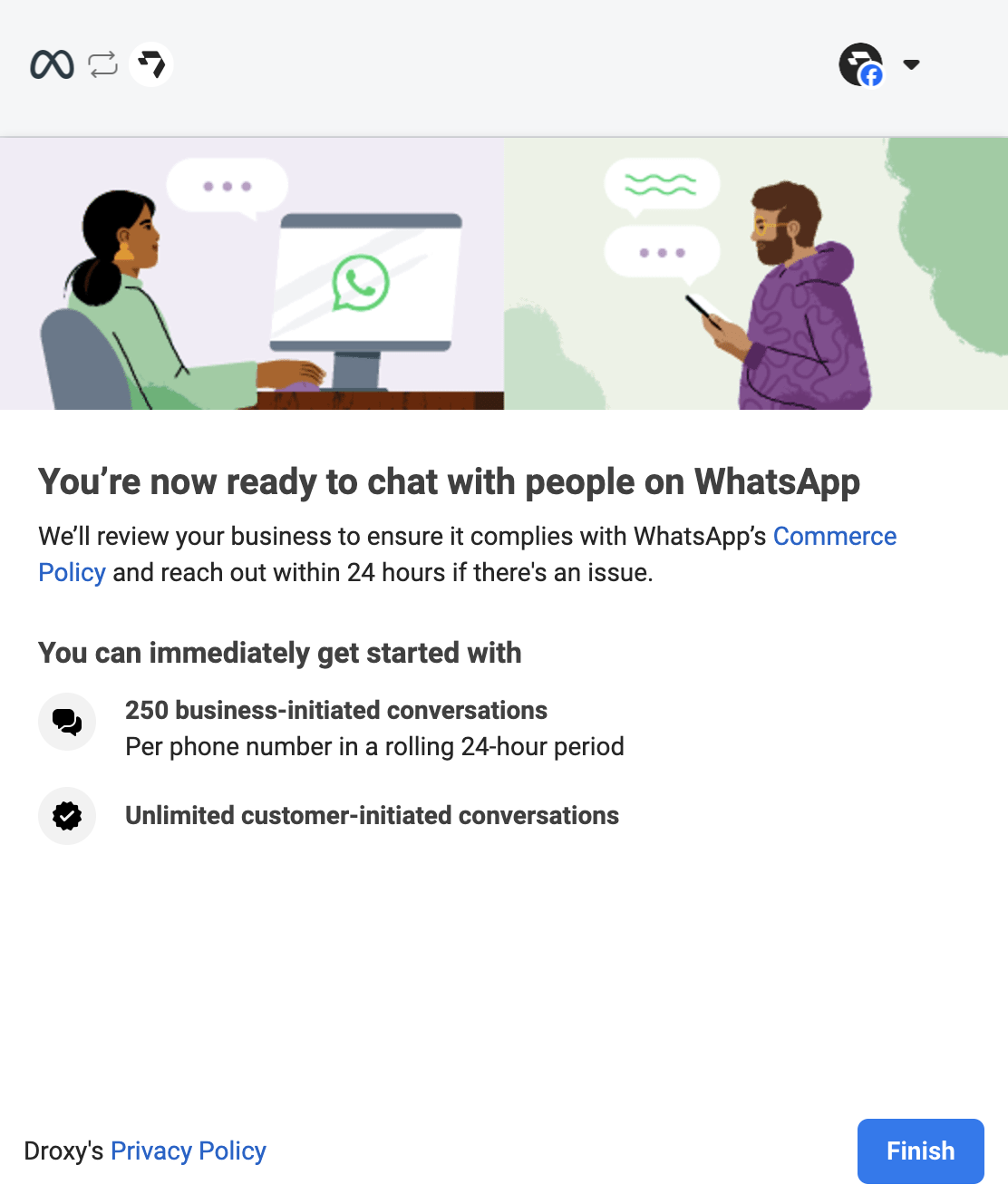
 Click on **Finish** to complete the connection process.
 ## Setting up your WhatsApp Messaging Agent
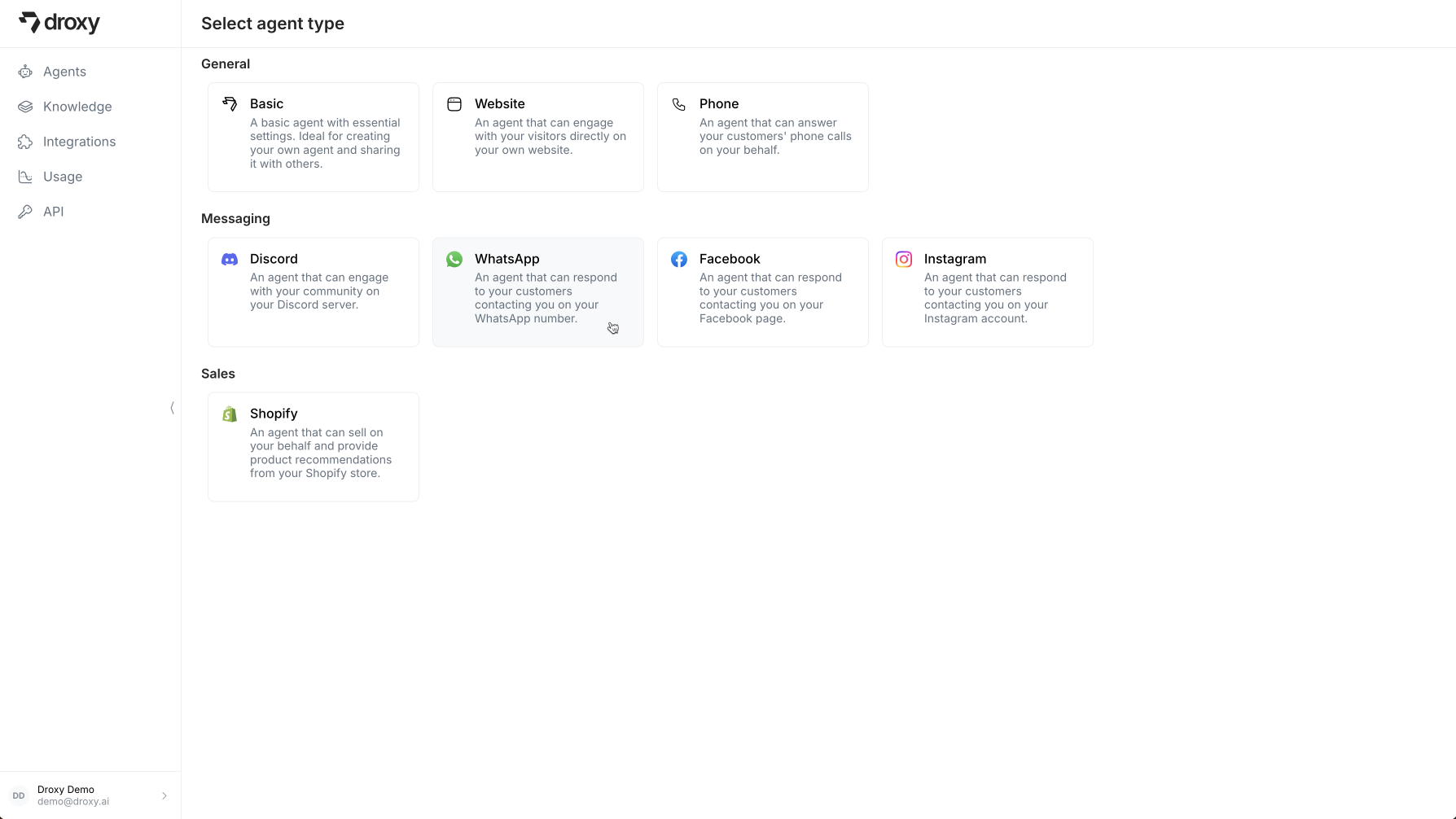
In the Droxy dashboard, go to the **Agents** section and click on **+ Add**. Then select **WhatsApp Agent** in the **Messaging** category.
## Setting up your WhatsApp Messaging Agent
In the Droxy dashboard, go to the **Agents** section and click on **+ Add**. Then select **WhatsApp Agent** in the **Messaging** category.
 ### 1. Basics
Configure the basics for your WhatsApp agent:
### 1. Basics
Configure the basics for your WhatsApp agent:
 * **Name and Avatar**: Give your agent a name and upload an avatar image that will be displayed in your dashboard
* **Connected Account**: Choose a WhatsApp Business Account to connect to your agent
* **Phone Number**: Choose a WhatsApp phone number to connect to your agent
### 2. Configuration
Configure your agent's behavior to suit your business needs:
* **Name and Avatar**: Give your agent a name and upload an avatar image that will be displayed in your dashboard
* **Connected Account**: Choose a WhatsApp Business Account to connect to your agent
* **Phone Number**: Choose a WhatsApp phone number to connect to your agent
### 2. Configuration
Configure your agent's behavior to suit your business needs:
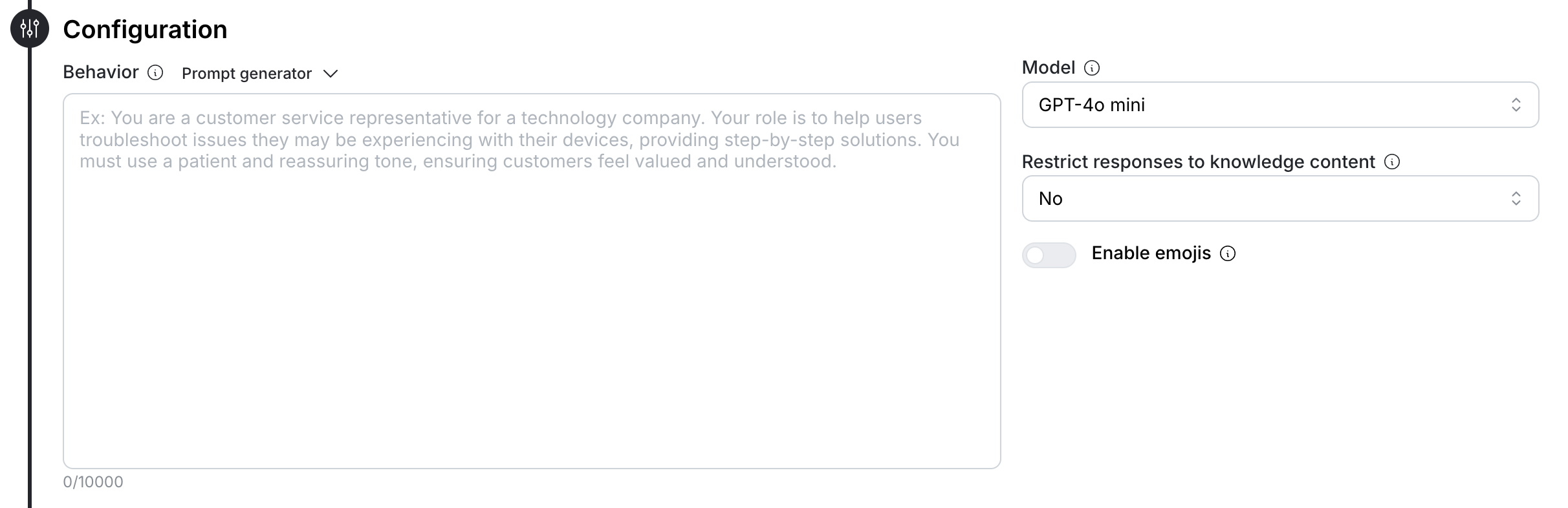 * **Behavior**: Define the agent's role, personality, and communication style. Be specific about how the agent should interact with visitors. Use the built-in prompt generator to create and refine your agent's instructions.
* **Model**: Select the LLM powering your agent (e.g., GPT-4o mini, Claude Sonnet 4.6, Gemini 3 Flash). Each model consumes different amounts of tokens and has different capabilities.
* **Knowledge Restrictions**: Choose whether to restrict the agent's responses to only your provided knowledge content. Make sure to specify to the agent what to answer if the knowledge base doesn't contain an answer.
* **Emojis**: Choose whether to enable emojis in the agent's responses
### 3. Knowledge Base
Ground your agent with relevant business information to help it answer customer questions accurately:
* **Behavior**: Define the agent's role, personality, and communication style. Be specific about how the agent should interact with visitors. Use the built-in prompt generator to create and refine your agent's instructions.
* **Model**: Select the LLM powering your agent (e.g., GPT-4o mini, Claude Sonnet 4.6, Gemini 3 Flash). Each model consumes different amounts of tokens and has different capabilities.
* **Knowledge Restrictions**: Choose whether to restrict the agent's responses to only your provided knowledge content. Make sure to specify to the agent what to answer if the knowledge base doesn't contain an answer.
* **Emojis**: Choose whether to enable emojis in the agent's responses
### 3. Knowledge Base
Ground your agent with relevant business information to help it answer customer questions accurately:
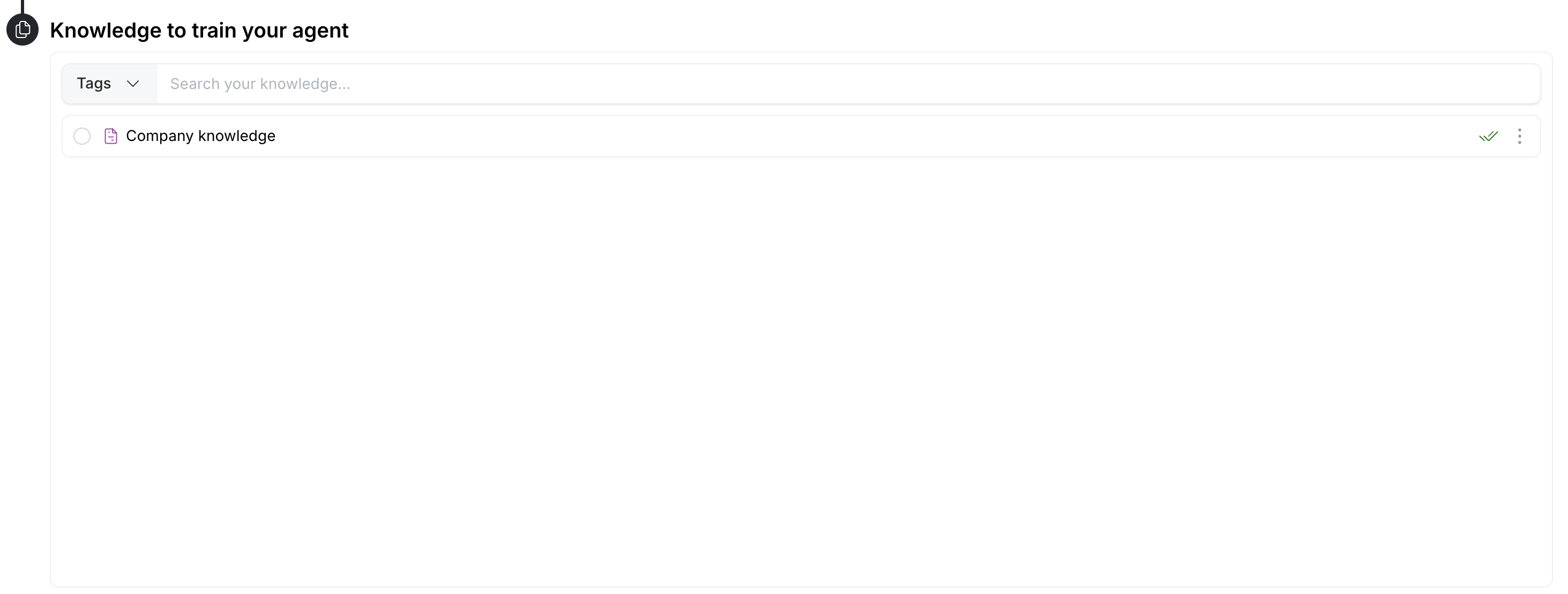 * Upload relevant company documents (PDFs, text files, Google Docs, etc.)
* Add website URLs for the agent to learn from
* Link YouTube videos that contain product information or tutorials
* Import custom knowledge bases or FAQs
### 4. Tools
You can enable the following tools to enhance messaging agent functionality:
* Upload relevant company documents (PDFs, text files, Google Docs, etc.)
* Add website URLs for the agent to learn from
* Link YouTube videos that contain product information or tutorials
* Import custom knowledge bases or FAQs
### 4. Tools
You can enable the following tools to enhance messaging agent functionality:
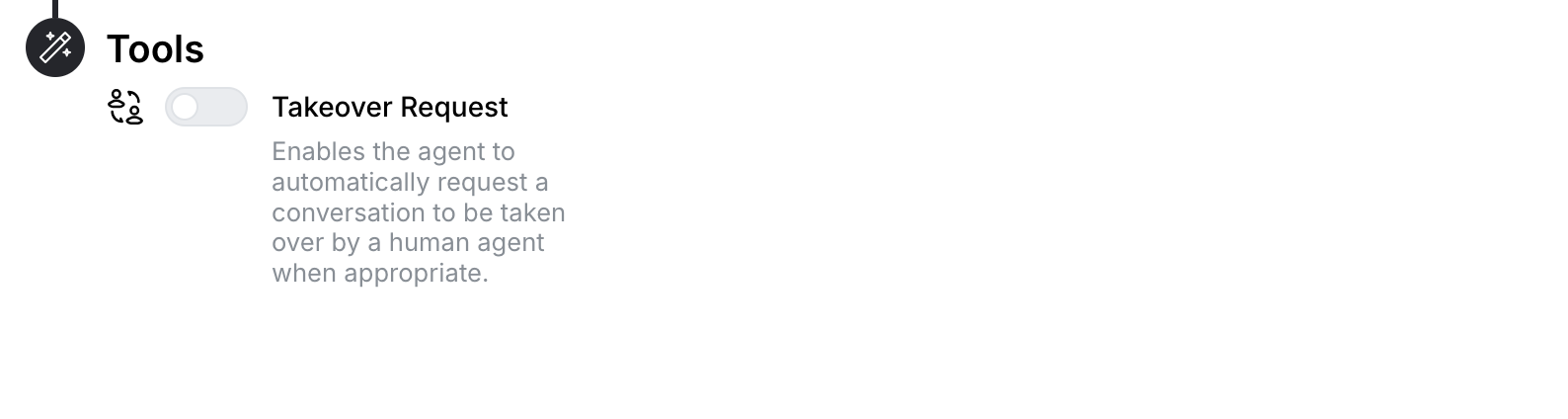 * **Takeover Request**: Enables the agent to automatically request a conversation to be taken over by a human agent when appropriate or when the user requests to speak to a human. You will receive a notification about the takeover request.
Each tool can be toggled on/off using the switches, allowing you to customize the feature set based on your needs.
* **Takeover Request**: Enables the agent to automatically request a conversation to be taken over by a human agent when appropriate or when the user requests to speak to a human. You will receive a notification about the takeover request.
Each tool can be toggled on/off using the switches, allowing you to customize the feature set based on your needs.